How to Use LinkedIn Advanced Search to Find Your Ideal Prospects Faster
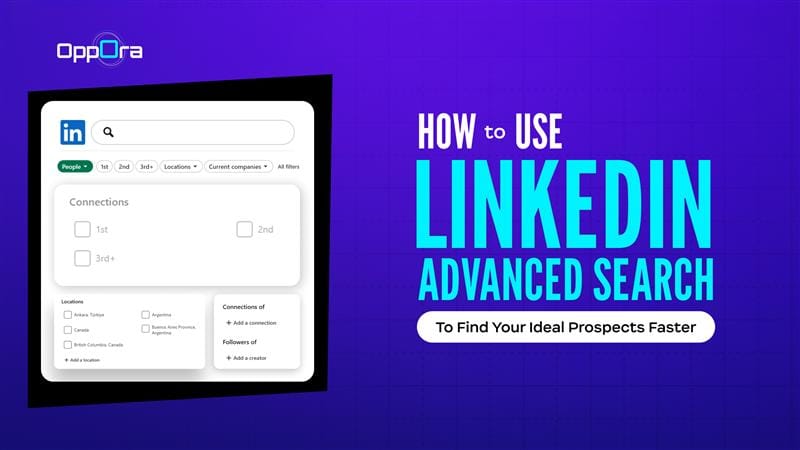
LinkedIn has become one of the most powerful platforms for B2B prospecting. With millions of professionals actively sharing insights, hiring, and making business decisions, it offers a massive opportunity for sales teams and founders to connect with potential customers.
But there’s a problem.
Simply typing a keyword into LinkedIn search often returns thousands of profiles — many of which are not relevant to your business.
This is where LinkedIn advanced search filters become essential.
By combining the right LinkedIn search filters, you can narrow down millions of profiles into a highly targeted list of potential prospects who actually match your ideal customer profile.
In this guide, you’ll learn:
- What LinkedIn advanced search is
- How LinkedIn search filters work
- Step-by-step process to find prospects faster
- Real prospecting examples
- How tools like Oppora help scale this process
What is LinkedIn Advanced Search?
LinkedIn Advanced Search allows users to refine search results using filters such as location, job title, company, industry, and connections to find more relevant people or companies.
Instead of browsing through thousands of profiles manually, advanced filters allow you to segment LinkedIn’s database into smaller, targeted groups.
For example, instead of searching for:
Marketing Manager
You can filter the results to show:
- Marketing Managers
- Working in SaaS companies
- Located in the United States
- With 2nd-degree connections
This instantly turns a broad search into a high-quality prospect list.
Many sales teams rely on this feature because LinkedIn acts as a live database of professionals and companies that can be filtered in real time.
Why LinkedIn Search Filters Are Important for Prospecting
Most LinkedIn users struggle with prospecting for one reason:
They search too broadly.
Without filters, you may see thousands of profiles that are irrelevant to your target market.
Using advanced filters allows you to:
- Find decision-makers faster
- Identify prospects within your niche industry
- Target companies with the right size and location
- Reach people who are more likely to respond
In other words, LinkedIn filters help convert a large professional network into a focused lead generation tool.
6 Steps for How to Use LinkedIn Advanced Search to Find Your Ideal Prospects
Step 1: Define Your Ideal Customer Profile (ICP)
Before using advanced search on LinkedIn, you need clarity on your Ideal Customer Profile (ICP).
Your ICP defines the type of people or companies most likely to benefit from your product.
Typical ICP attributes include:
- Industry
- Job title
- Company size
- Geographic location
- Seniority level
For example:
Oppora ICP example
Industry: SaaS Role: Founder, Sales Director, Growth Lead Company size: 10-200 employees Region: US, UK, Europe
Once this profile is clear, LinkedIn search filters become extremely powerful.
Without this step, even the best filters will produce poor results.
Step 2: Start with LinkedIn Basic Search
The process begins with a simple search.
- Go to LinkedIn
- Use the search bar
- Enter a keyword such as:
- “Founder”
- “Head of Sales”
- “Marketing Director”
Then select “People” from the results page.
This ensures LinkedIn only shows professional profiles instead of companies or posts.
Step 3: Use LinkedIn Advanced Search Filters
Once the results appear, you can refine them using LinkedIn advanced search filters.
Some of the most important filters include:
1. Location Filter
This filter narrows prospects based on geography.
Example:
If your company sells mainly in North America, you can filter by:
- United States
- Canada
This removes irrelevant prospects from other regions.
2. Connection Filter
LinkedIn divides relationships into:
- 1st degree (direct connections)
- 2nd degree (mutual connections)
- 3rd degree (no connection)
Many sales teams prioritize 2nd-degree connections because they have a higher acceptance rate.
3. Current Company Filter
This allows you to target people working at specific companies.
Example:
If your product helps marketing teams, you can target employees from companies like:
- HubSpot
- Salesforce
- Shopify
This is useful for account-based prospecting.
4. Industry Filter
The industry filter allows you to narrow results to professionals within specific sectors.
Example:
- SaaS
- FinTech
- Healthcare
- E-commerce
This ensures your outreach focuses on industries where your solution is most relevant.
5. Job Title Filter
The job title filter helps identify decision-makers.
Examples include:
- Founder
- CEO
- VP Sales
- Head of Marketing
You can combine multiple titles to broaden the search.
Step 4: Combine Filters for Highly Targeted Results
The real power of LinkedIn advanced search appears when filters are combined.
Example search:
Keyword: “Sales Director”
Filters:
Location: United States Industry: Software Connections: 2nd degree Company size: 50-200 employees
This combination can transform a 10,000-profile search into a focused list of 200-300 relevant prospects.
Step 5: Use Boolean Search for Better Results
Another powerful technique is Boolean search.
Boolean operators help refine your LinkedIn search results.
Examples include:
OR operator
Founder OR Co-Founder
This shows profiles with either title.
AND operator
Marketing AND SaaS
This returns profiles containing both terms.
NOT operator
Recruiter NOT HR
This removes irrelevant results.
Boolean search is especially useful when targeting multiple variations of a job title.
Step 6: Use Sales Navigator for Deeper Filters
For advanced prospecting, many companies upgrade to LinkedIn Sales Navigator.
Sales Navigator offers 20+ additional filters, including:
- Seniority level
- Company headcount
- Years in role
- Department/function
- Recent activity on LinkedIn
These filters make it easier to find high-intent prospects who are active on LinkedIn.
For example:
You can filter for people who:
- Posted on LinkedIn recently
- Changed jobs in the last 90 days
- Were mentioned in the news
These signals help identify prospects who may be more open to conversations.
Example: Finding SaaS Founders Using LinkedIn Filters
Let’s walk through a practical example.
Goal: Find SaaS founders for an outreach campaign.
Search steps:
Keyword: Founder
Filters:
Industry: Software Location: United States Connections: 2nd degree Company size: 10-200 employees
Result:
Instead of thousands of random profiles, you now have a focused list of SaaS founders who match your target market.
These prospects are much more likely to respond to relevant outreach.
The Challenge with Manual LinkedIn Prospecting
While LinkedIn advanced search is powerful, manual prospecting has limitations:
- Searching and filtering takes time
- Exporting and organizing leads is difficult
- Personalizing outreach at scale is challenging
- Managing follow-ups across prospects becomes complex
This is why many teams combine LinkedIn prospecting with AI-powered outreach platforms.
Scaling LinkedIn Prospecting with Oppora
Finding the right prospects using LinkedIn advanced search is only the first step. The bigger challenge for most sales teams is turning those prospects into consistent conversations and qualified opportunities.
Manual prospecting often involves multiple steps—exporting leads, finding verified contact details, writing personalized messages, managing follow-ups, and tracking responses. Doing all of this manually can quickly become time-consuming.
This is where platforms like Oppora.ai help streamline the process.
Oppora is an AI-powered sales automation platform that helps businesses find prospects, enrich contact data, and run automated outreach campaigns from a single platform.
Instead of managing several tools separately, Oppora brings prospect discovery, outreach, and campaign tracking together in one workflow.
With Oppora, sales teams can:
- Capture leads directly from LinkedIn with a one-click LinkedIn extension
- Enrich prospect data with verified contact information
- Automatically qualify and score leads based on relevance
- Launch personalized multi-step outreach campaigns via email and LinkedIn
- Track replies, engagement, and meeting bookings in one dashboard
The platform also uses AI-powered agents and workflow automation to handle repetitive sales tasks, allowing teams to focus more on conversations and closing deals.
For example, after identifying prospects using LinkedIn search filters, teams can import those profiles into Oppora, enrich them with verified emails, and automatically launch personalized outreach campaigns.
This approach transforms LinkedIn prospecting from a manual process into a structured outbound system that continuously generates new opportunities.
Final Thoughts
LinkedIn is one of the most powerful platforms for B2B prospecting — but only if you know how to use it effectively.
By mastering LinkedIn advanced search filters, you can:
- Identify ideal prospects faster
- Focus on high-quality leads
- Reduce time spent on irrelevant profiles
- Improve outreach response rates
However, prospect discovery is only one part of the process.
To fully scale outbound sales, teams need systems that combine prospect discovery, outreach, and follow-ups.
Platforms like Oppora help bridge that gap by enabling sales teams to organize prospects, personalize outreach, and manage campaigns more efficiently.
When combined with LinkedIn’s advanced search capabilities, this approach creates a powerful system for modern outbound prospecting.
Frequently Asked Questions
Can LinkedIn advanced search help identify active prospects on the platform?
Yes, LinkedIn advanced search can indirectly help identify active prospects. By reviewing profiles that frequently post content, engage with discussions, or recently updated their job roles, sales teams can identify users who are more active on LinkedIn. Active professionals are generally more responsive to connection requests and outreach messages.
How often should you update your LinkedIn search filters when prospecting?
Search filters should be reviewed and adjusted regularly depending on campaign results. Markets evolve quickly, and new prospects join LinkedIn daily. Many sales teams refresh their search filters every few weeks to discover new leads and ensure their prospect list remains relevant.
Can LinkedIn advanced search be used for account-based prospecting?
Yes, LinkedIn search filters are highly effective for account-based prospecting. Sales teams can filter professionals based on their current company, allowing them to identify multiple decision-makers within a target organization. This makes LinkedIn a valuable platform for researching stakeholders before starting outreach campaigns.
What is the difference between LinkedIn keyword search and filtered search?
Keyword search simply looks for profiles containing specific terms, which can generate very broad results. Filtered search refines those results using attributes such as location, company, or job role. Combining keywords with filters significantly improves the accuracy of LinkedIn prospect searches.
How many prospects should you collect from a LinkedIn search before starting outreach?
The number of prospects depends on the campaign size, but many teams start with 100–300 targeted prospects per campaign. A smaller, highly relevant list usually performs better than a large list of loosely matched contacts.