AI Workflow in Oppora.ai: A Complete Step-by-Step Guide
ai workflow, workflow automation, oppora.ai workflow, ai agents
What is AI Workflow in Oppora.ai?
AI Workflow in Oppora.ai lets you automate a series of actions on the platform. This means you can create a custom sequence of tasks that run automatically at specified times, without needing to log in and manually perform each task.
For example, you can set up a workflow to run every day at 9 AM that does the following:
- Finds companies that have posted job openings for SDR (Sales Development Representatives) in the last 7 days.
- Identifies decision-makers at those companies (like the Sales Director or Head of Marketing).
- Collects email addresses for these decision-makers.
- Verifies the accuracy of these email addresses.
- Adds these leads to an outreach sequence where follow-up emails will be sent automatically.
Once this workflow is set up, it will run daily and handle all of these tasks for you automatically finding leads, enriching their data, verifying emails, and adding them to your campaign list. You don’t need to log in or manage it manually.
Benefits of AI Workflow
- Automated Lead GenerationAI finds and qualifies leads automatically based on your custom settings.
- Scalable Outreach Run personalized outreach at scale without manual effort.
- Improved Accuracy AI ensures that only the best-fit leads are chosen based on predefined criteria.
- Reduced Manual Work Automates repetitive tasks such as email sequencing, follow-ups, and lead scoring.
Features of AI Workflow
- Customizable Workflows Create workflows tailored to your business processes or use pre-built templates.
- AI-Powered Agents Use agents like Company Finder, Lead Finder, AI Lead Scoring, and more.
- Real-Time Automation Let AI handle the entire lead generation and outreach process in real time.
- Integration with CRM Sync your workflows with your CRM to keep data up-to-date automatically.
Feature Sub-Parts
Prerequisites for Using AI Workflow
- Oppora.ai Account: An active Oppora.ai account is required to access the AI Workflow features.
- Clear ICP (Ideal Customer Profile): Defining your ICP is essential for effective lead generation and targeting.
- Access to Relevant Tools: You should have integrated your CRM and email tools for seamless data flow and outreach.
- Active Subscription: Ensure your Oppora.ai plan supports AI-powered workflows and automation agents.
How to Use AI Workflow in Oppora.ai: Step-by-Step
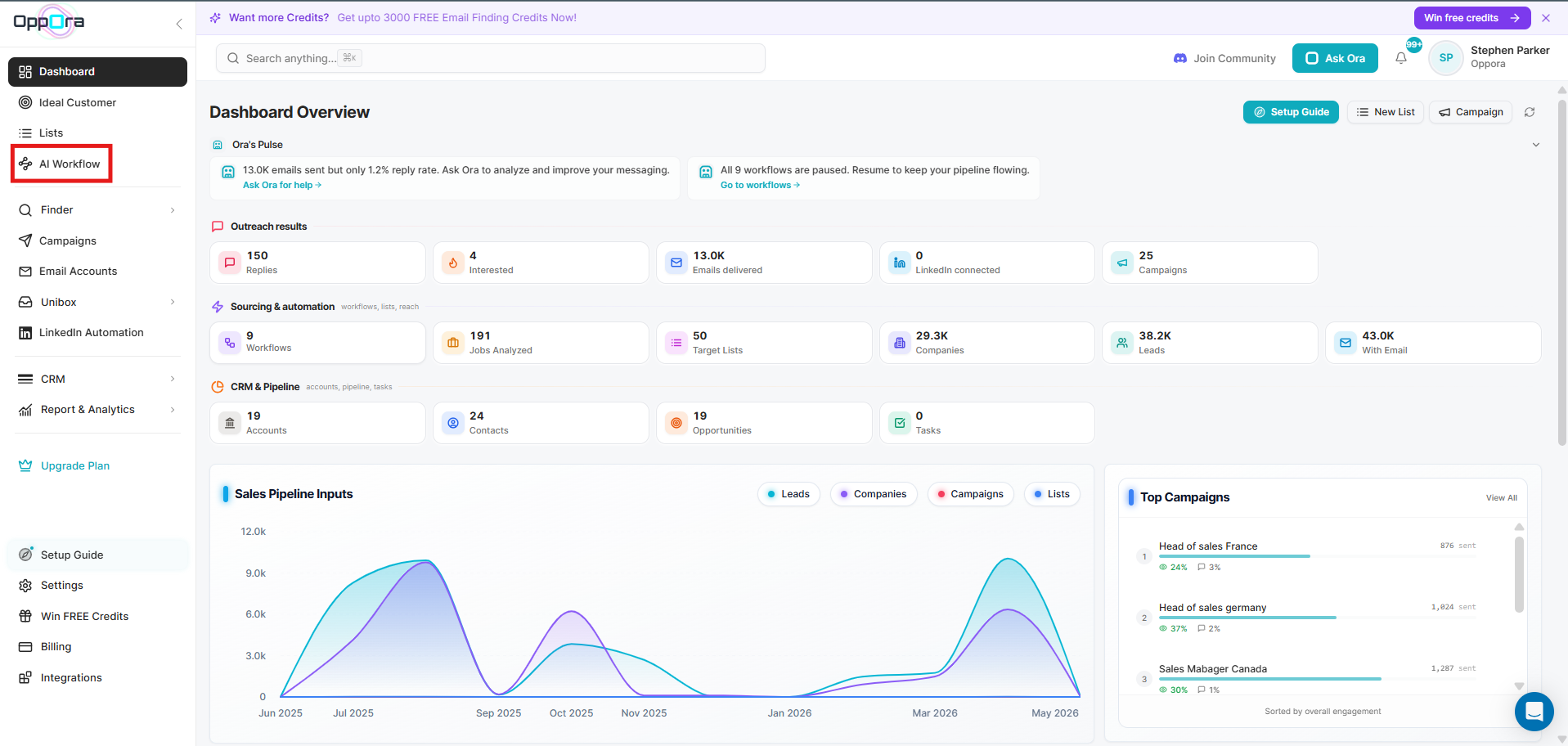
Step 1: Access AI Workflow Dashboard
- Log into your Oppora.ai account.
- On the left sidebar, click on AI Workflow to open the workflow management interface.
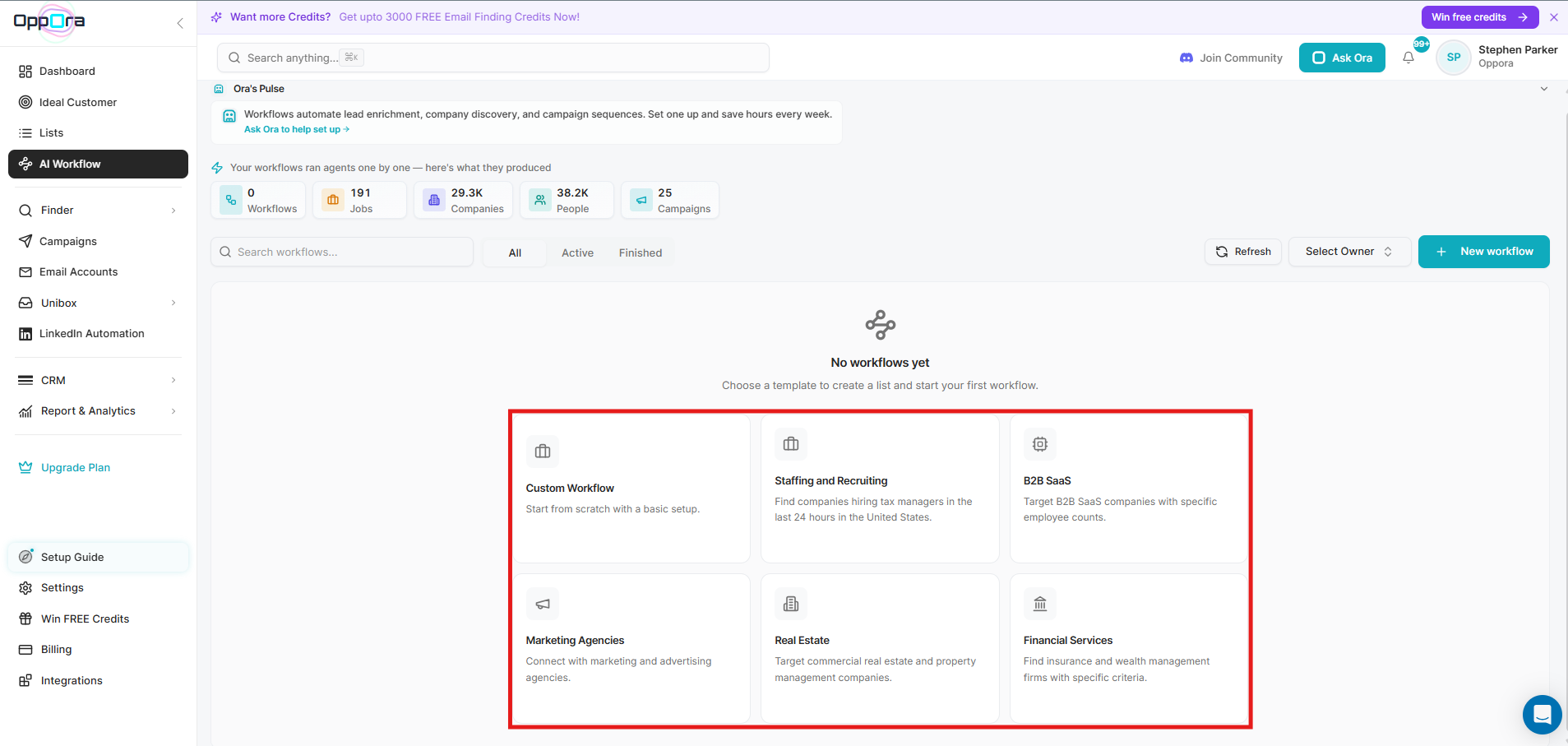
Step 2: Select Your Template or Start Custom Workflow
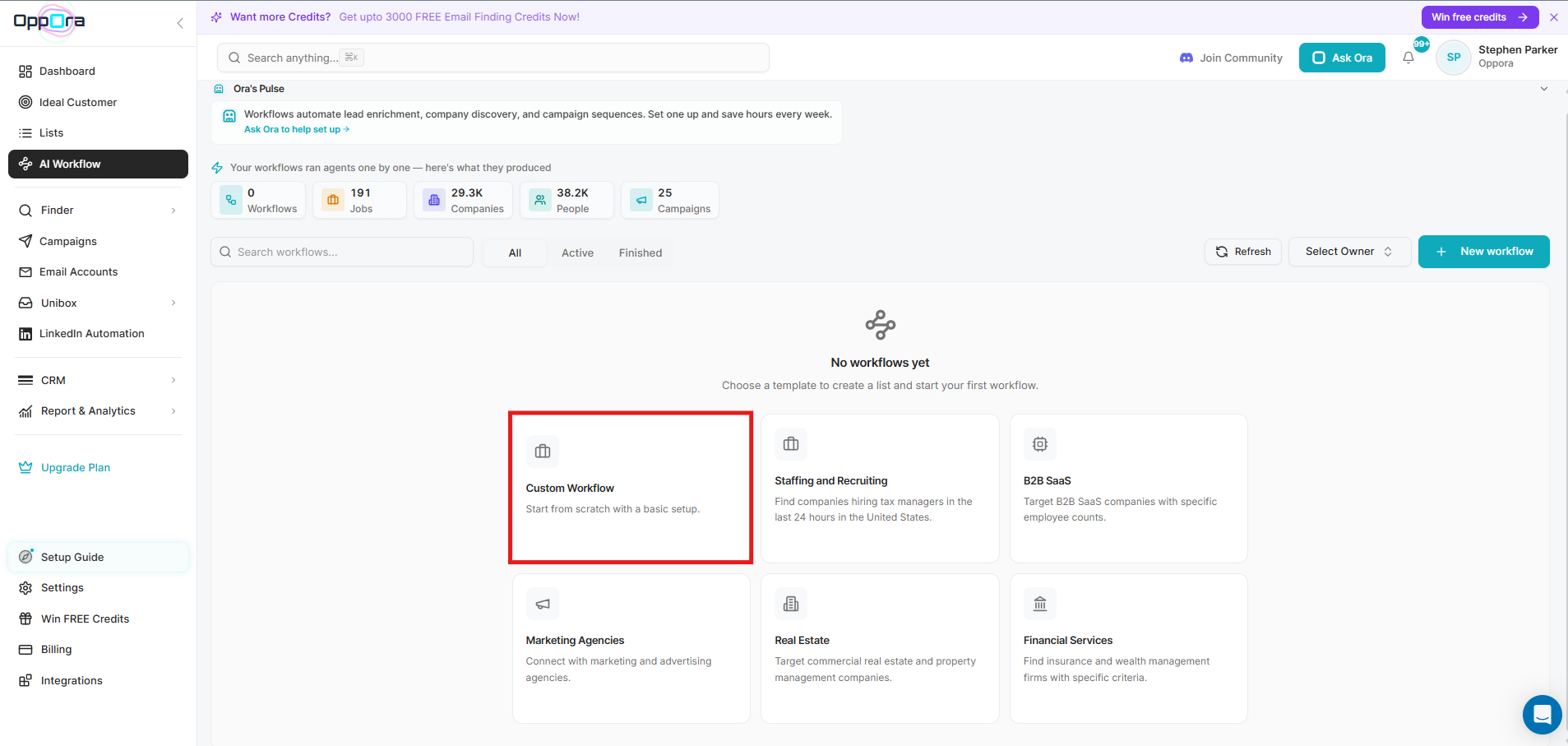
- You can either choose from prebuilt workflow templates (like B2B SaaS or staffing) or click Create Custom Workflow to start from scratch.
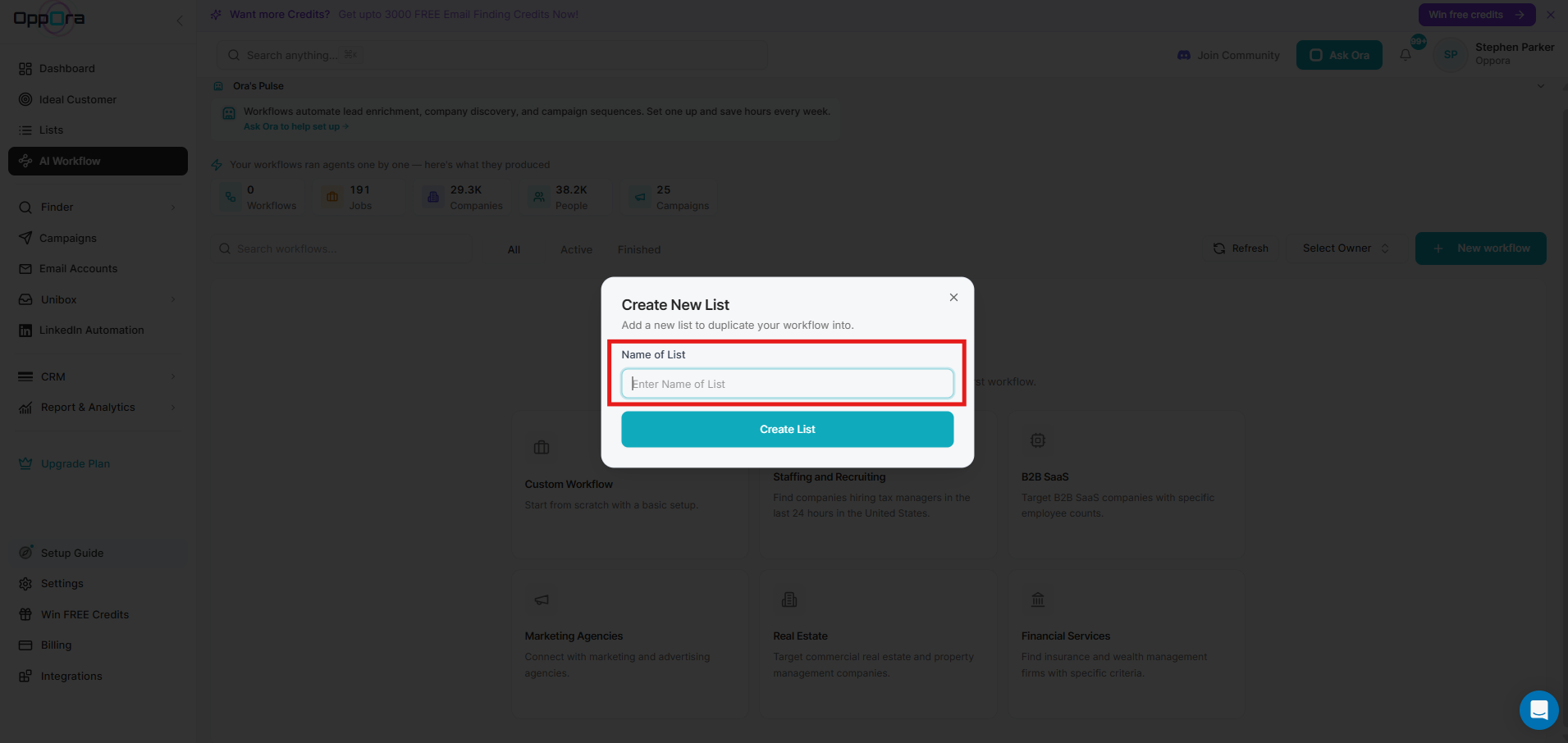
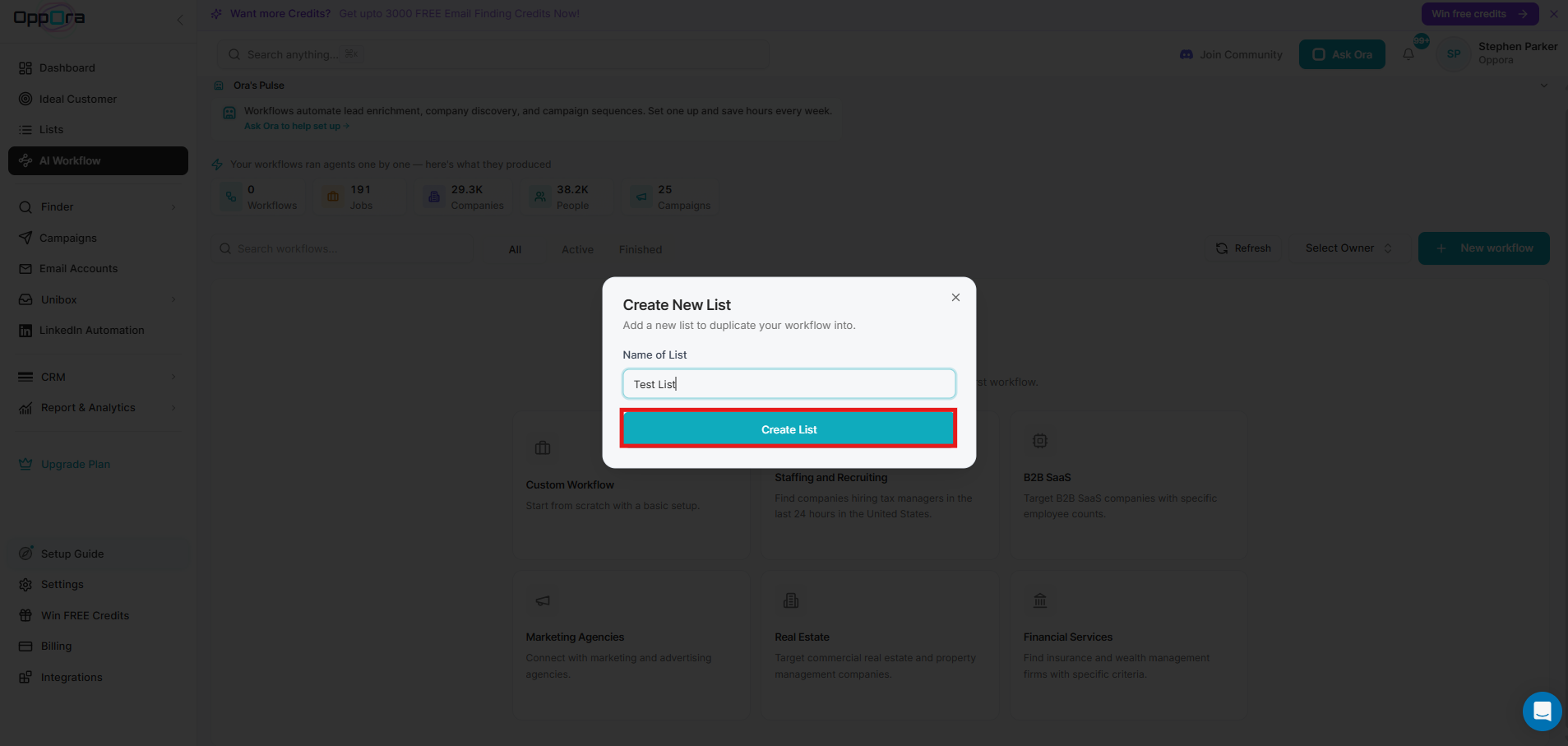
Step 3: Name Your List
- After choosing a template, name your list (e.g., “Sales Lead Generation”).
- Every workflow is tied to a list inside Oppora.ai. You can create a workflow directly from within any list. This allows you to better organize your leads and campaigns, making it easy to track and manage prospects.
- Click Create List to proceed.
Step 4: Add Agents to Your Workflow
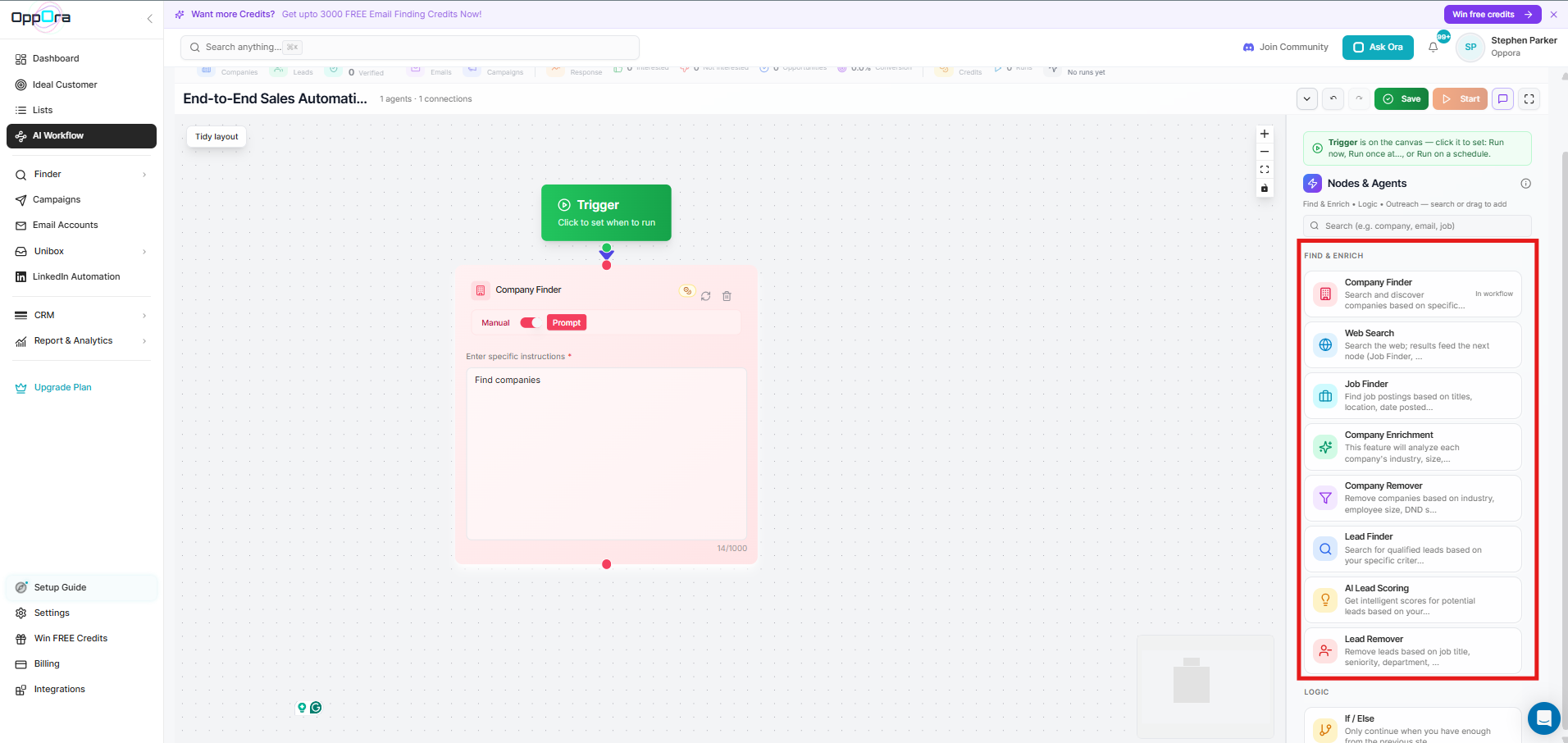
- Drag and Drop Agents: Begin by dragging and dropping the appropriate agents onto your workflow canvas. You can add agents like:
- Company Finder – To find companies that fit your criteria (e.g., industry, size, location).
- Lead Finder – To search for leads within those companies based on job titles, department, or seniority.
- Email Finder – To retrieve email addresses for the leads you’ve identified.
- AI Lead Scoring – To automatically score leads based on their likelihood to convert.
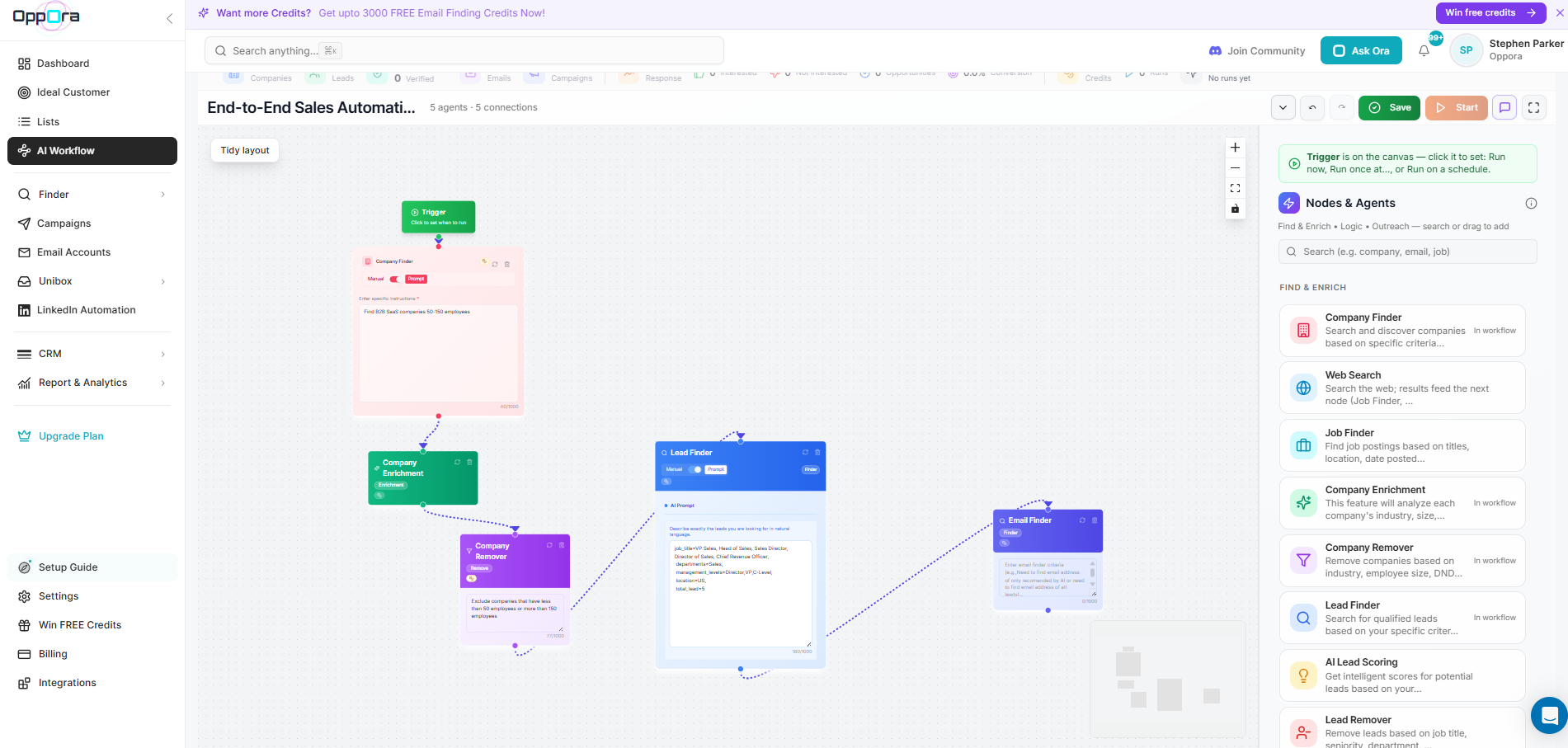
- Connect the Agents: Once you’ve added the agents, connect them to create a workflow chain. For example, after the Company Finder agent finishes its task, the Lead Finder agent will search for leads within the identified companies. The Email Finder will follow to retrieve email addresses for those leads. You can design the flow of actions based on your needs—whether you want a complete outreach workflow or just a routine lead finding process.
Step 5: Customize Each Node's Instructions
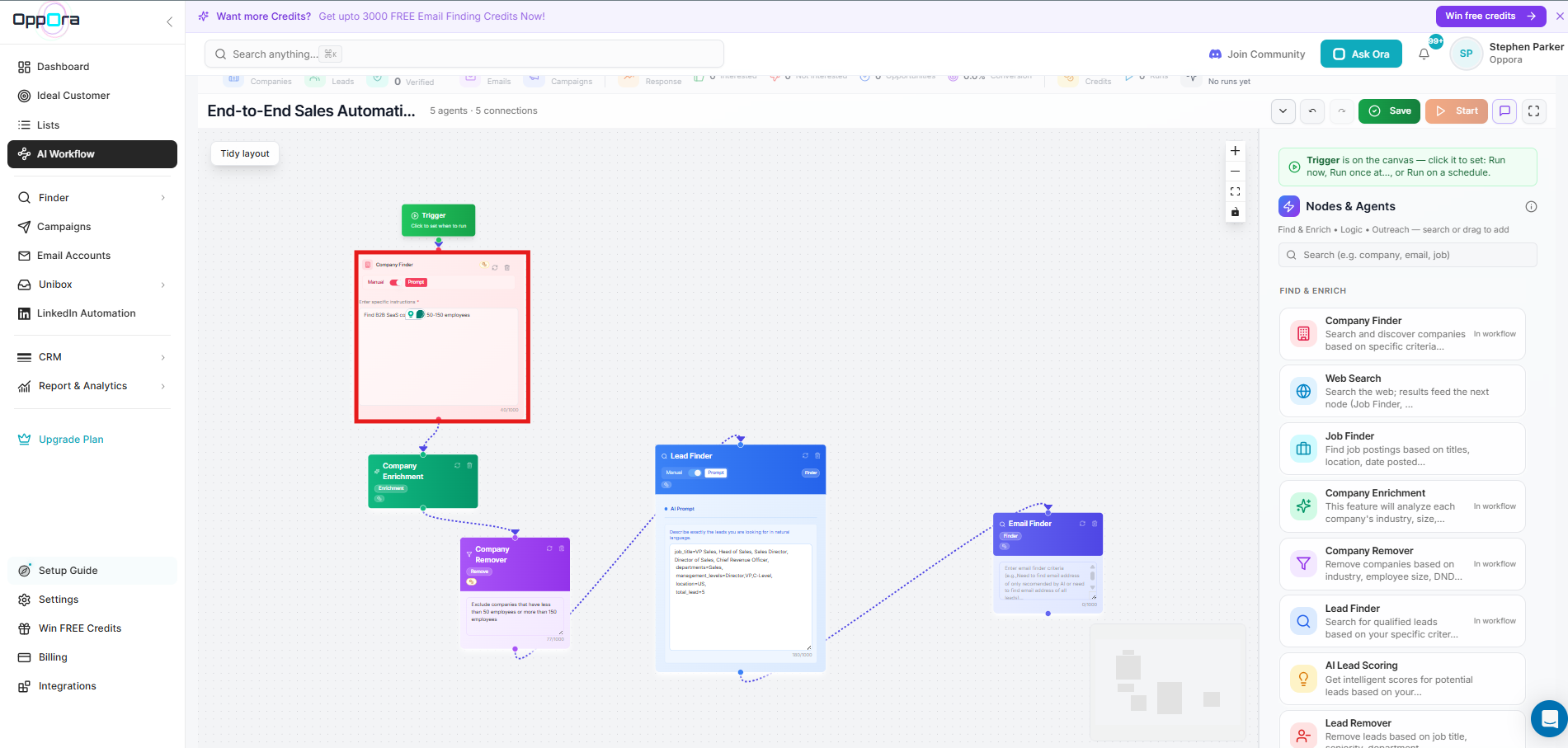
- After adding agents, click on each one to edit its specific instructions.
- Customize the parameters based on your business needs. For example, define specific job titles for the Lead Finder agent.
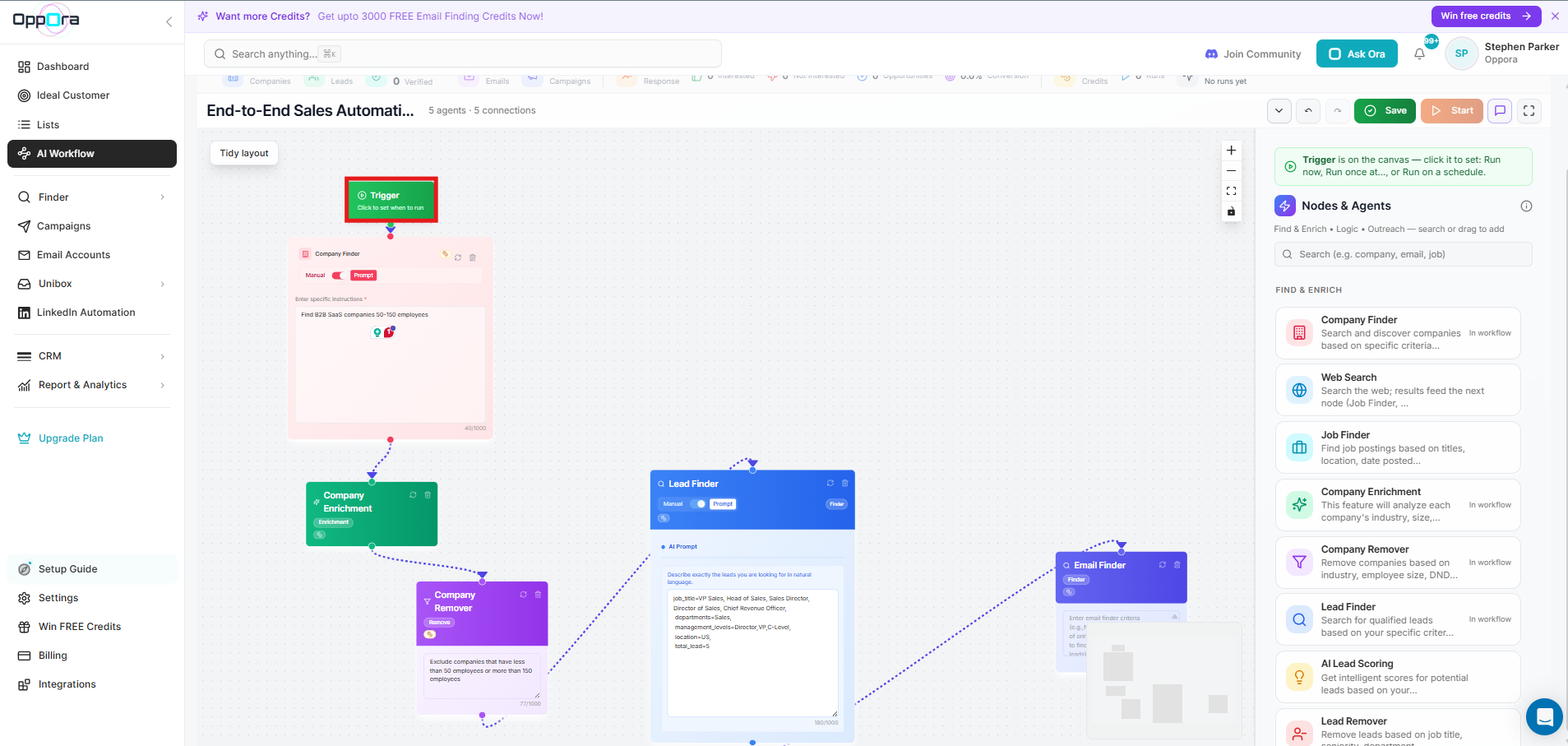
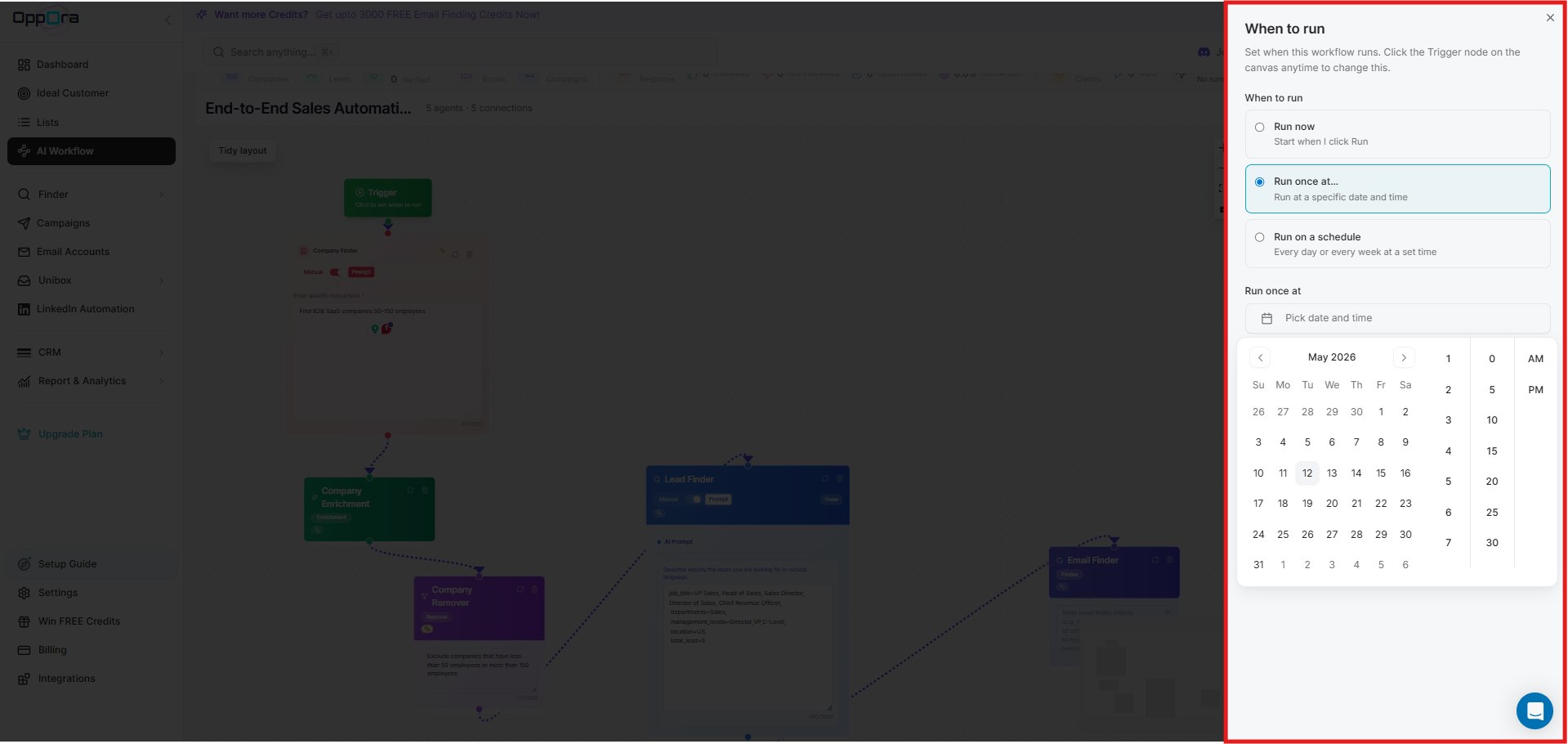
Step 6: Set the Trigger for Your Workflow
- Click on the Trigger button in the workflow canvas.
- You can set the workflow to run immediately, on a schedule, or at a specific time.
Step 7: Save Your Workflow
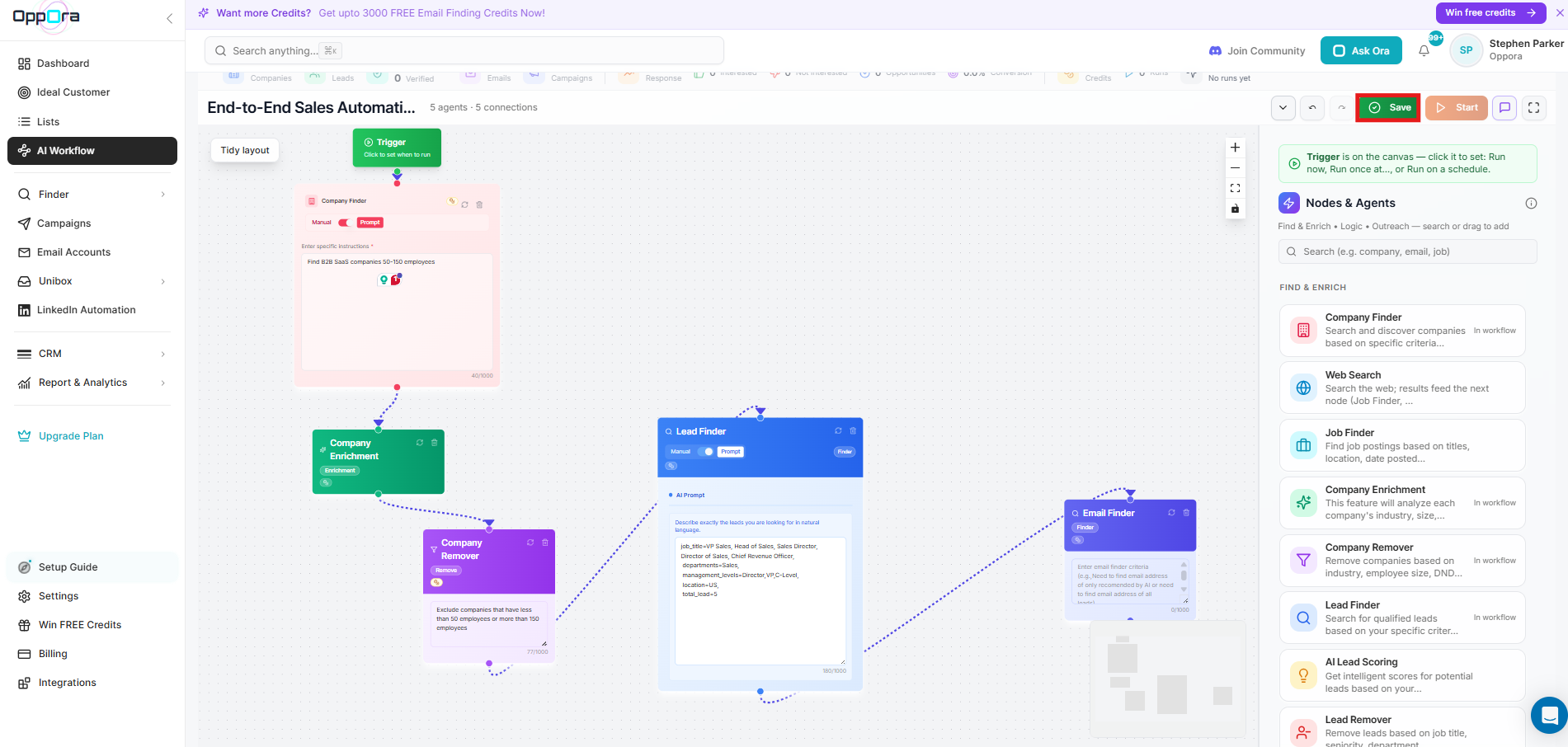
- After reviewing and setting up the workflow, click Save to store your settings.
- Ensure that all agents are configured correctly before saving.
Step 8: Activate Your Workflow
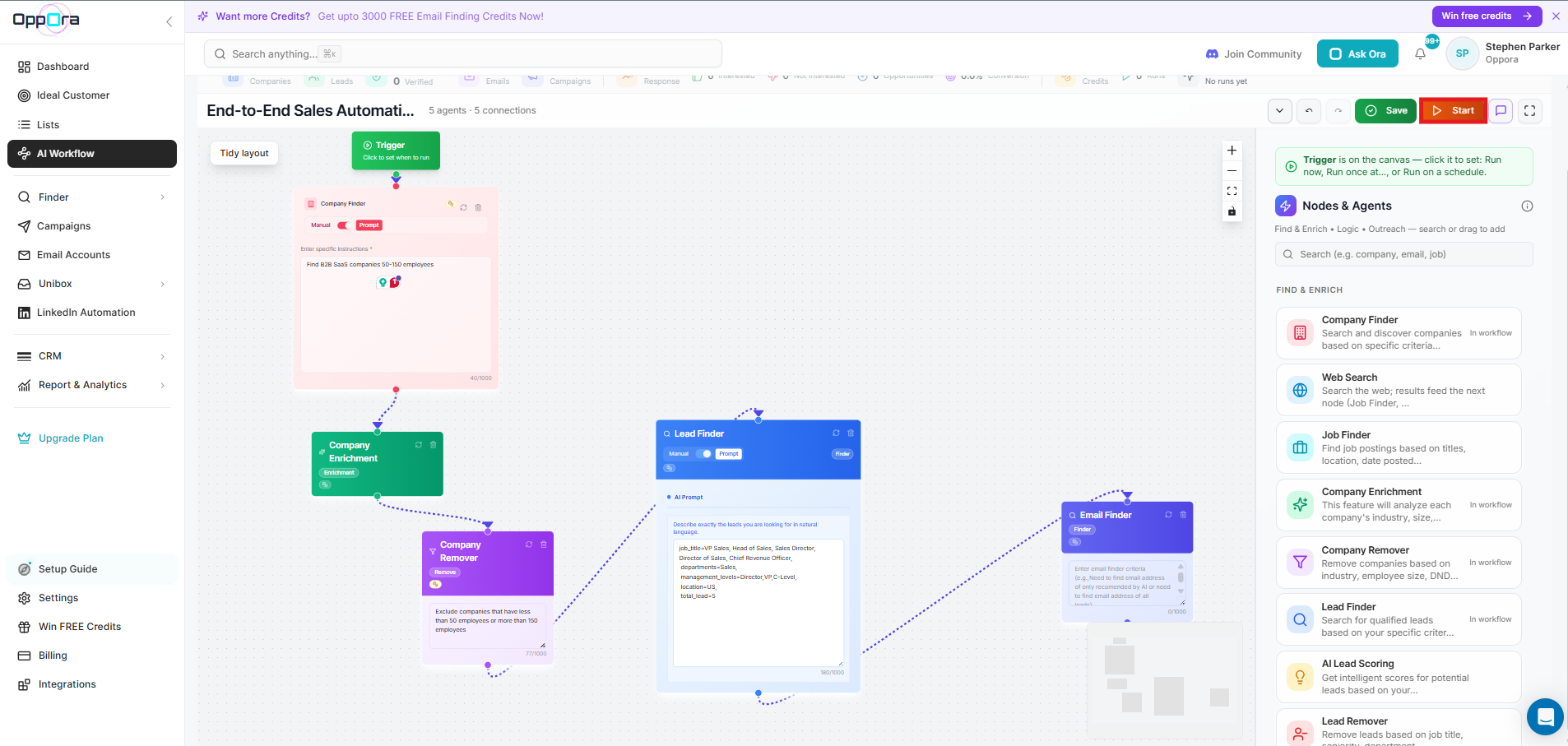
- Once the workflow is saved, click Start to begin executing the automation process.
- The agents will start performing tasks such as finding companies, generating leads, and sending emails.
Best Practices for AI Workflow
- Define Clear Goals: The more specific your workflow goal, the better the AI will perform.
- Refine Agent Instructions: Always ensure that the agents are configured with accurate instructions.
- Monitor Results: Keep an eye on the workflow’s performance and make adjustments as necessary.
- Test Before Scaling: Run a small batch test before scaling the workflow to a larger audience.
Troubleshooting
- No Leads Found: Double-check the filters in the Lead Finder and Company Finder agents. Ensure that the criteria are not too restrictive.
- Workflow Not Triggering: Make sure the Trigger is set properly, and the time zone and schedule are correct.
- Incomplete Data: Ensure that the Company Enrichment agent is properly configured to enrich the data you need.
- Email Addresses Not Found: If the Email Finder agent fails, make sure that the lead profiles are complete with valid names.
FAQs
- What is an AI Workflow? AI Workflow automates the tasks of company discovery, lead generation, data enrichment, and outreach, making the process faster and more scalable.
- Can I create a custom AI workflow? Yes, you can create workflows from scratch using the Custom Workflow option and add your specific agents and steps.
- What agents are used in the AI workflow? Agents like Company Finder, Lead Finder, Email Finder, AI Lead Scoring, and more are used to automate lead generation, outreach, and data enrichment.
- How do I monitor the progress of my workflow? The AI Workflow Dashboard shows the progress of each step, including which agents have completed and how many leads or companies were generated.