How to Use LinkedIn Sales Navigator Advanced Search (+Full Filter List)
advanced search linkedin sales navigator linkedin sales navigator advanced search filters linkedin sales navigator advanced search filters list
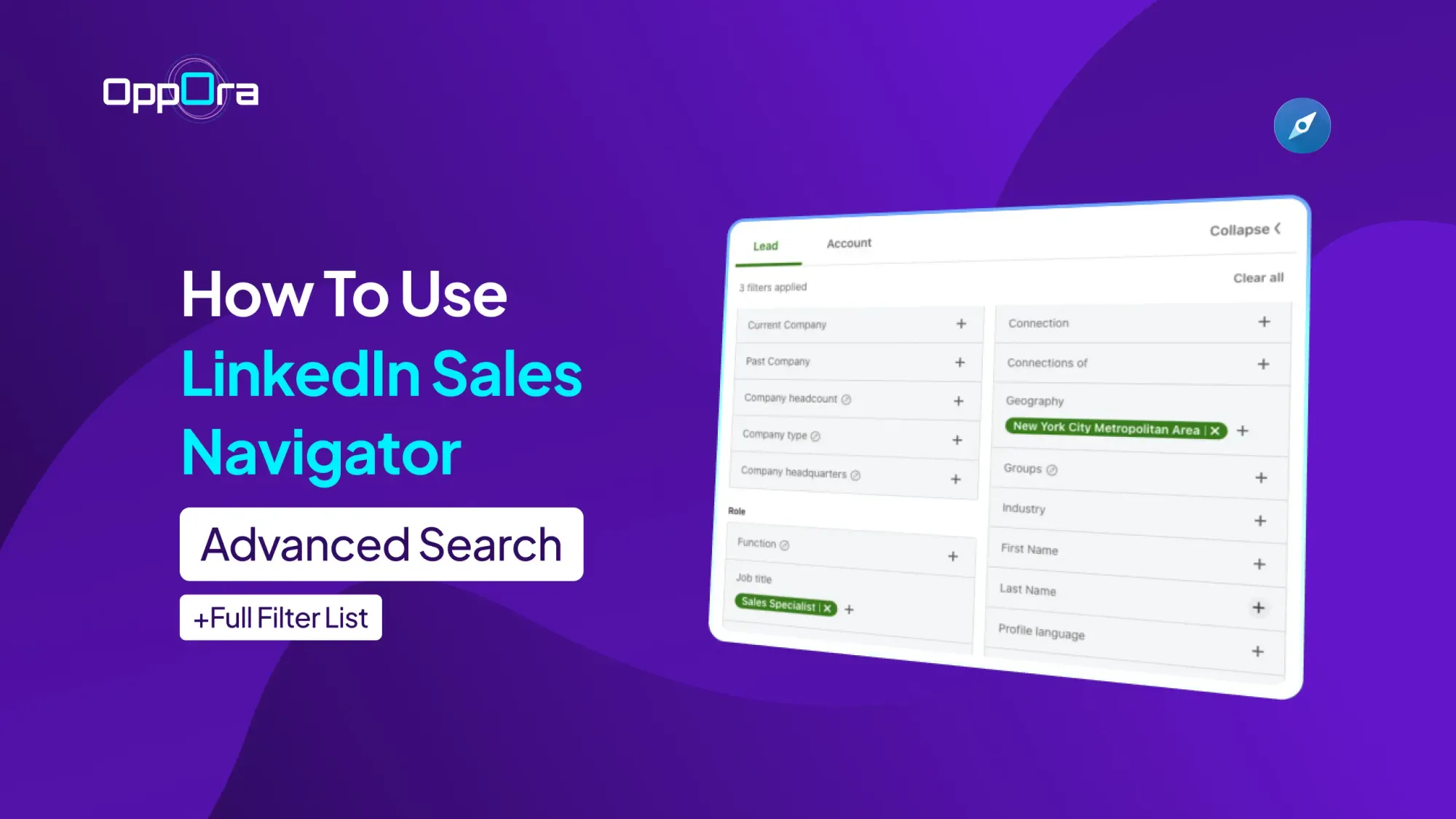
Finding the right prospects on LinkedIn often feels like searching blindly through thousands of profiles without clear direction.
You might know who you want to target, but without the right filters, your outreach quickly becomes inefficient and inconsistent.
That’s where LinkedIn Sales Navigator Advanced Search changes how you approach prospecting by helping you narrow down exactly who matters.
In this guide, you’ll learn:
- How LinkedIn Sales Navigator Advanced Search actually works
- How to use filters step-by-step for better targeting
- The full list of filters you can use
- Common mistakes that reduce lead quality
- How to scale your prospecting workflow efficiently
What Is LinkedIn Sales Navigator Advanced Search?
Once you understand the challenge of finding the right prospects, the next step is knowing how to filter them properly.
LinkedIn Sales Navigator Advanced Search is a feature that helps you discover targeted leads and accounts using detailed filtering options.
Instead of relying on basic search, you can narrow results based on job roles, company data, and buying signals.
This allows you to focus only on high-fit prospects, improving lead quality, segmentation, and overall outbound efficiency.
How to Use LinkedIn Sales Navigator Advanced Search Step-by-Step
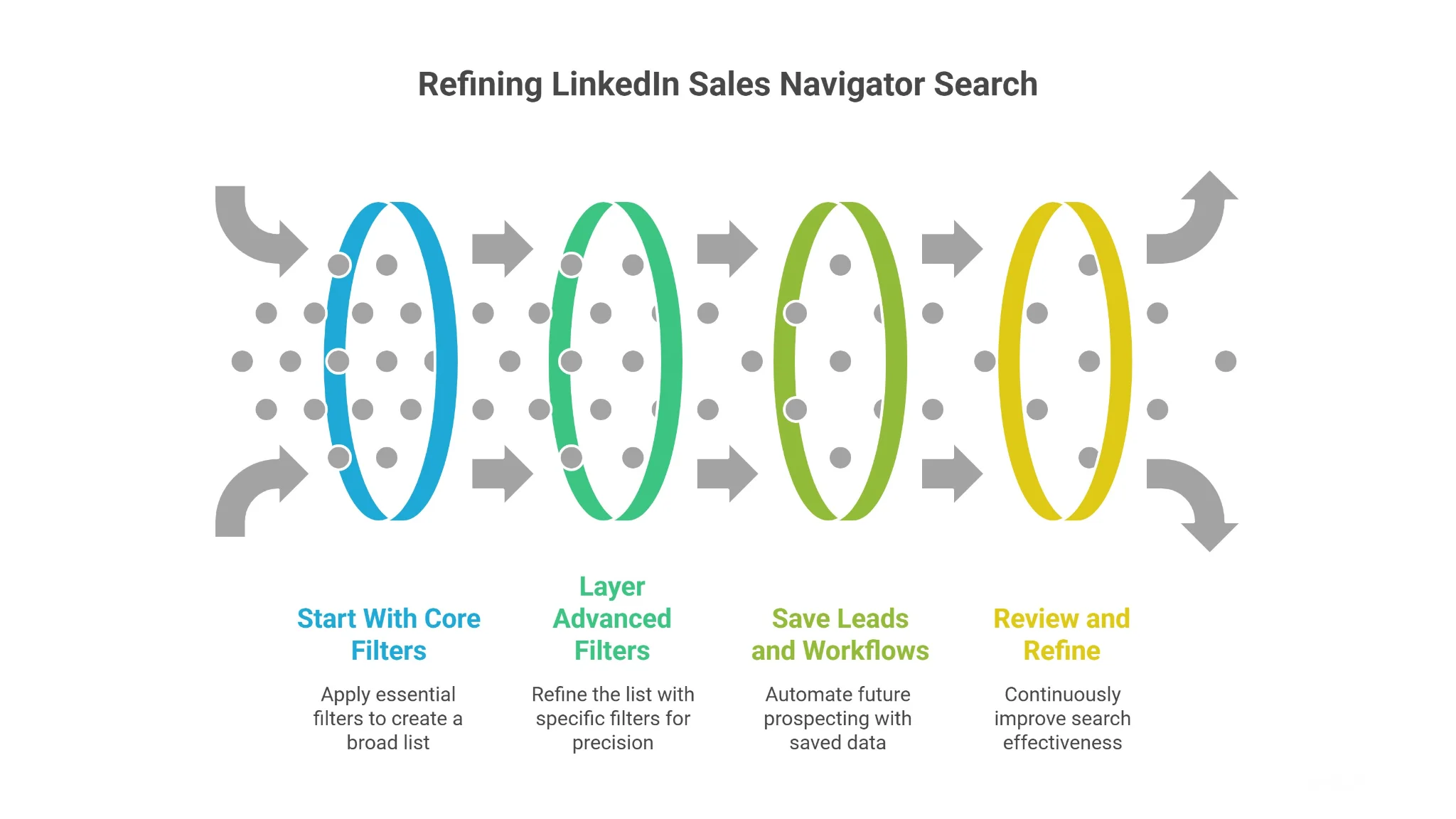
Now that you understand what advanced search does, the real value comes from using it the right way.
Instead of randomly applying filters, you need a structured approach that keeps your prospecting focused and scalable.
Step 1: Define Your Ideal Customer Profile Before Searching
Before touching any filters, get clear on who you actually want to reach.
This step removes guesswork and helps every filter work in your favor.
Focus on key attributes like:
- Company size and industry
- Target geography or market
- Job roles and seniority
- Core pain points or use cases
When your ICP is clear, your search becomes sharper and more intentional.
Step 2: Start With Core Search Filters First
Once your ICP is defined, begin with the most important filters instead of overcomplicating things early.
Start simple so you don’t accidentally eliminate good prospects.
Your core filters should usually include:
- Job title or function
- Location
- Company size
- Industry
- Seniority level
This gives you a solid base list that is relevant but not overly restricted.
Step 3: Layer Advanced Filters to Narrow Prospect Lists
After building a broad list, you can refine it using more specific filters.
This is where precision improves lead quality without killing volume.
You can layer filters like years of experience, company growth, or recent activity signals to identify stronger opportunities.
The goal is simple: narrow down intelligently, not aggressively, so you keep both quality and scale.
Step 4: Save Leads and Search Workflows for Faster Prospecting
Once you start getting relevant results, don’t repeat the same process every time.
Saving leads and searches helps you turn one-time effort into a repeatable system.
You can track prospects over time and get alerts when something changes, like job moves or company growth.
This keeps your outreach timely and reduces manual work significantly.
Suggested Reading:
10 Best LinkedIn Prospect Finder Tools in 2026 (Tried and Tested)Step 5: Review and Refine Search Results Regularly
Even a good search setup needs continuous improvement to stay effective.
Your market, audience, and results will keep evolving, so your filters should too.
Review which leads convert, remove underperforming filters, and test new combinations.
Over time, this helps you build a high-performing prospecting system instead of relying on static searches.
Full LinkedIn Sales Navigator Advanced Search Filters List
Once you understand how to apply filters step by step, the next step is knowing what filters actually exist and how they help.
LinkedIn Sales Navigator offers a wide range of advanced search filters that let you narrow down prospects with precision.
These filters cover identity, role, company data, activity signals, and workflow management.
When used correctly, they help you build highly targeted lead lists and improve overall prospecting efficiency.
Lead Identity Filters
Before you get into deeper targeting, you need a way to identify the right individual profiles.
That’s exactly what lead identity filters help you do.
These filters are useful when you already have partial information about your prospect or want to refine results using profile-specific details.
Instead of broad searches, you’re narrowing down based on who the person actually is.
You’ll typically use filters like:
- Current job title
- Past job title
- First and last name
- Profile language
These filters are especially helpful when you’re working with known accounts or doing account-based prospecting.
They don’t define intent or fit completely, but they help you clean up noisy search results and focus on the right individuals faster.
Role and Experience Filters
Once you know who you’re targeting, the next step is understanding how relevant they are to your offer.
This is where role and experience filters become critical.
They help you identify decision-makers and influencers instead of just random employees inside a company.
Rather than guessing based on titles alone, you can layer multiple signals that indicate authority and experience.
For example, you can refine prospects using:
- Function (like Marketing, Sales, Operations)
- Seniority level (Manager, Director, VP, CXO)
- Years in current role
- Years at company
- Total years of experience
These filters help you avoid one of the biggest prospecting mistakes — reaching out to people who simply don’t have buying power.
When combined properly, they ensure your outreach is focused on people who can actually take action.
Company and Firmographic Filters
After identifying the right person, you need to make sure they belong to the right type of company.
That’s where firmographic filters come in.
These filters help you align your prospecting with your Ideal Customer Profile by focusing on company-level attributes.
Instead of treating all companies the same, you can segment them based on size, structure, and market positioning.
Key filters in this category include:
- Company headcount
- Revenue range
- Industry
- Company type (public, private, startup, etc.)
- Headquarters location
- Department headcount
This is where your ICP clarity really starts to matter.
For example, if you’re targeting mid-market SaaS companies, using company size and industry filters together will drastically improve your lead quality.
Without firmographic filtering, even perfectly targeted individuals can still be poor-fit prospects.
Suggested Reading:
10 Firmographic Data Providers Compared: Features, Data & PricingLocation and Territory Filters
Even with the right person and company, geography still plays a huge role in prospecting success.
Location and territory filters help you narrow down where your prospects are based.
This is especially important for teams working with regional markets, assigned territories, or location-specific offerings.
Instead of sending generic outreach globally, you can align your efforts with where opportunities actually exist.
Common filters in this category include:
- Geography (country, state, city)
- Postal code targeting
- Region-based segmentation
These filters are not just about proximity.
They help you adapt messaging, timing, and even compliance based on the region you’re targeting.
When combined with other filters, location targeting ensures your outreach feels more relevant and strategically focused.
Relationship and Network Filters
Once you’ve identified the right prospects, the next challenge is figuring out how to approach them.
That’s where relationship and network filters become valuable.
These filters help you prioritize leads based on existing connections, shared experiences, or proximity within your network.
Instead of starting every conversation cold, you can identify opportunities where some level of familiarity already exists.
You can refine your search using:
- TeamLink connections
- Shared experiences
- Past colleagues
- Connection level (1st, 2nd, 3rd degree)
This makes your outreach warmer and more contextual.
For example, reaching out to a second-degree connection with a mutual contact often gets better responses than a completely cold message.
These filters don’t change who your ideal prospect is, but they significantly improve how you engage them.
Suggested Reading:
How Does LinkedIn Connection Levels Works?Buyer Intent and Activity Filters
After narrowing down your audience, timing becomes the next critical factor.
Not every qualified prospect is ready to engage at the same moment.
Buyer intent and activity filters help you identify when a prospect might be more open to a conversation.
These filters focus on recent actions and signals that indicate movement or potential need.
Instead of relying only on static data, you’re now looking at real-time behavior.
Key filters include:
- Buyer intent signals
- Recent LinkedIn posts or activity
- Job changes
- Hiring activity
- Profile views
These signals often indicate change within a company or role.
For instance, a company that is actively hiring or a decision-maker who recently changed jobs may be more open to exploring new solutions.
Using these filters allows you to time your outreach better, making your messaging feel more relevant and less intrusive.
CRM and Workflow Filters
As your prospecting grows, managing leads becomes just as important as finding them.
CRM and workflow filters help you stay organized and avoid duplicating effort.
These filters allow you to segment prospects based on how they already exist within your system or workflow.
Instead of starting from scratch every time, you can build on previous searches and interactions.
You can organize and refine your lists using:
- Saved leads
- Saved accounts
- People already in your CRM
- Account lists
- Lead lists
This is especially useful for teams running ongoing campaigns or managing multiple outreach sequences.
It helps you revisit high-potential leads, exclude already-contacted prospects, and maintain cleaner pipelines.
Without these filters, it’s easy to lose track of who you’ve already engaged or miss opportunities within your existing data.
Suggested Reading:
5 Best CRM With LinkedIn Integration + How To UseEducation and Interest Filters
Finally, beyond role and company data, there’s a layer of personalization that many teams overlook.
Education and interest filters help you connect with prospects on a more human level.
These filters allow you to identify shared backgrounds, communities, or interests that can make your outreach feel more relevant.
Instead of purely transactional messaging, you can build conversations around common ground.
Common filters in this category include:
- School or university
- LinkedIn groups
- Following your company
These details can be powerful conversation starters.
For example, mentioning a shared university or group creates immediate familiarity and increases the chances of engagement.
While these filters may not define qualification directly, they play a key role in improving response rates through personalization.
When combined with other filters, they help you move from generic outreach to more thoughtful, relationship-driven prospecting.
Common Mistakes People Make With LinkedIn Sales Navigator Advanced Search
Even though LinkedIn Sales Navigator Advanced Search is powerful, most people don’t get the results they expect.
That usually comes down to how filters are used, not the tool itself.
Avoiding a few common mistakes can instantly improve your prospect quality and outreach performance.
Using Too Many Filters at the Same Time
It’s tempting to apply every filter available to get “perfect” leads.
But in reality, over-filtering often kills your search results.
When you stack too many conditions, you shrink your audience too aggressively and miss out on qualified prospects.
A better approach is to start broad with core filters, then gradually refine based on results.
This keeps your pipeline healthy while still improving relevance over time.
Relying Only on Job Titles for Targeting
Job titles seem like the easiest way to find decision-makers.
But they are often inconsistent and misleading across companies.
The same role can have different titles, and the same title can mean different levels of authority.
Instead of relying only on titles, combine them with seniority, function, and company filters.
This gives you a more accurate view of who actually has decision-making power.
Ignoring Prospect Activity and Growth Signals
Many teams focus only on static data like company size or industry.
But they miss out on signals that indicate when to reach out.
Things like hiring activity, recent posts, or job changes often show that something is happening inside the company.
These moments create better opportunities for outreach.
If you ignore these signals, your messaging may feel poorly timed and get ignored.
Building Massive Lead Lists Without Qualification
More leads don’t automatically mean better results.
In fact, large unqualified lists often lead to lower response rates and wasted effort.
When your list is too broad, personalization becomes difficult and outreach feels generic.
Instead of chasing volume, focus on smaller, highly targeted lists.
This allows you to write better messages, improve engagement, and run more efficient outbound campaigns.
How Oppora AI Extends LinkedIn Sales Navigator Prospecting
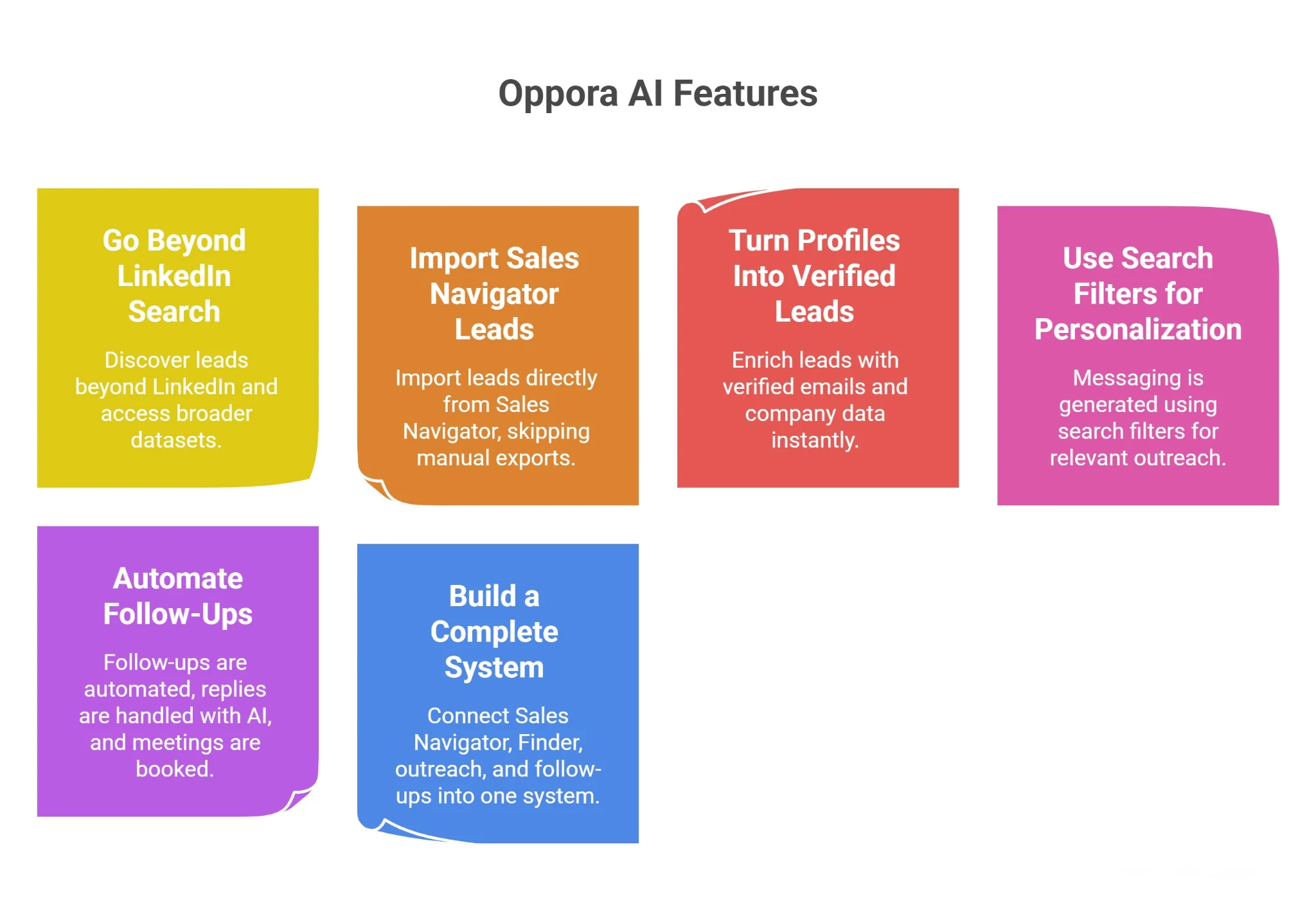
Sales Navigator helps you narrow down the right people.
But once you start relying on it daily, a few gaps become obvious.
You’re still limited to LinkedIn’s database.
You still don’t have verified emails.
And you still have to handle everything after search manually.
So your workflow looks like this:
- Search on LinkedIn
- Export leads manually
- Find emails using other tools
- Run outreach somewhere else
That’s where prospecting starts feeling fragmented instead of scalable.
Go Beyond LinkedIn Search with Finder
Sales Navigator is powerful, but it’s still a closed system.
You can only find leads that exist inside LinkedIn’s database.
So if your ideal prospects aren’t active or visible there, you miss them completely.
Oppora’s Finder solves this limitation.
- Discover leads beyond LinkedIn
- Access broader datasets across sources
- Reduce dependency on a single platform
So instead of replacing Sales Navigator, you expand your reach beyond it.
Import Sales Navigator Leads Without Breaking Your Workflow
Once you find leads on LinkedIn, the next step usually breaks your flow.
You export CSVs, move data into sheets, and switch tools.
This slows everything down.
Oppora removes that friction.
- Import leads directly from Sales Navigator
- Skip manual exports and file handling
- Move straight into execution
So your prospecting stays continuous instead of interrupted.
Turn Profiles Into Verified, Contactable Leads
Sales Navigator gives you profiles, not contact-ready data.
You still don’t have emails to actually reach prospects.
Which means more tools, more steps, and more guesswork.
Oppora fills this gap automatically.
- Enrich leads with verified emails
- Add company and contact data instantly
- Reduce bounce risk with validation
So your leads become usable, not just visible.
Use Search Filters to Drive Real Personalization
You apply filters for a reason.
Role, industry, and activity signals define why a lead matters.
But that context is often lost when writing outreach.
You end up sending generic messages anyway.
Oppora keeps that context intact.
- Messaging is generated using search filters
- Emails reflect role, industry, and signals
- Outreach feels relevant without extra effort
So your targeting and messaging finally work together.
Suggested Reading:
20 LinkedIn Cold Message Templates for Better OutreachAutomate Follow-Ups Instead of Managing Them Manually
Sales Navigator stops at prospecting.
Everything after that is manual again.
You have to:
- Track replies
- Send follow-ups
- Manage conversations
Oppora takes over this layer completely.
- Follow-ups are automated
- Replies are handled with AI
- Meetings are booked instantly
So your pipeline moves forward without constant input.
Build a Complete System Instead of Disconnected Steps
Using Sales Navigator alone creates a fragmented workflow.
Search happens in one place, outreach in another, and tracking somewhere else.
This makes scaling difficult.
Oppora connects everything into one system.
- Use Sales Navigator for precise targeting
- Use Finder for broader discovery
- Run outreach and follow-ups in one flow
So instead of choosing between tools, you combine them into a single, scalable system.
Conclusion
LinkedIn Sales Navigator Advanced Search becomes far more powerful when you stop treating filters as isolated options and start using them as a structured system.
When you define your ICP clearly, apply filters strategically, and refine your searches over time, you naturally improve both lead quality and outreach results.
But finding the right prospects is only half the job.
If you want to turn those filtered searches into consistent pipeline, you need a workflow that handles enrichment, personalization, and follow-ups without slowing you down.
That’s exactly where Oppora helps you move from manual prospecting to a scalable outbound system without adding complexity to your process.
Frequently Asked Questions (FAQs)
Can LinkedIn Sales Navigator Advanced Search be used without a clear ICP?
You can use it, but results will be inconsistent. Without a defined ICP, filters become guesswork, leading to irrelevant leads. A clear ICP helps you apply filters with purpose, improving both targeting accuracy and outreach performance.
How often should you update your saved searches in Sales Navigator?
It’s best to review and refine saved searches every few weeks. Markets change, companies grow, and roles evolve. Regular updates ensure your prospect lists stay relevant and aligned with your current targeting strategy.
Are Sales Navigator filters enough for building outreach campaigns?
Filters help you find prospects, but they don’t handle outreach execution. You still need tools or systems for enrichment, messaging, and follow-ups to turn those leads into actual conversations and pipeline.
What’s the ideal number of leads to work with at once?
There’s no fixed number, but smaller, highly targeted lists usually perform better. Working with 50–200 qualified leads allows better personalization and higher response rates compared to massive, unfiltered lists.
Can beginners effectively use advanced search filters?
Yes, but starting simple is key. Begin with core filters like job title, company size, and location, then gradually add advanced filters as you understand how each one impacts your results.