Oppora.ai LinkedIn Extension Guide
LinkedIn Extension, Oppora.ai LinkedIn Extension, Oppora.ai Extension
The Oppora.ai LinkedIn Extension helps you pull companies, people, and jobs while you’re browsing LinkedIn and instantly import them as organized lists inside Oppora.ai that you can later use for:
- Building targeted prospect databases
- Finding decision-makers inside target companies
- Finding emails and enriching leads with additional intent data
- Sending outreach emails and automated LinkedIn connection invites
- Syncing leads directly to your CRM
And, in this guide, you’ll learn how to:
- Install the Oppora.ai Chrome Extension
- Login or create your account
- Collect LinkedIn companies
- Collect LinkedIn leads/people
- Import LinkedIn jobs
- Save everything directly into Oppora.ai lists
- Find People in those companies and their email & phone details
- Use those lists for outreach and prospecting
Install the Oppora.ai Chrome Extension
Before using the extension, you first need to install it from the Chrome Web Store.
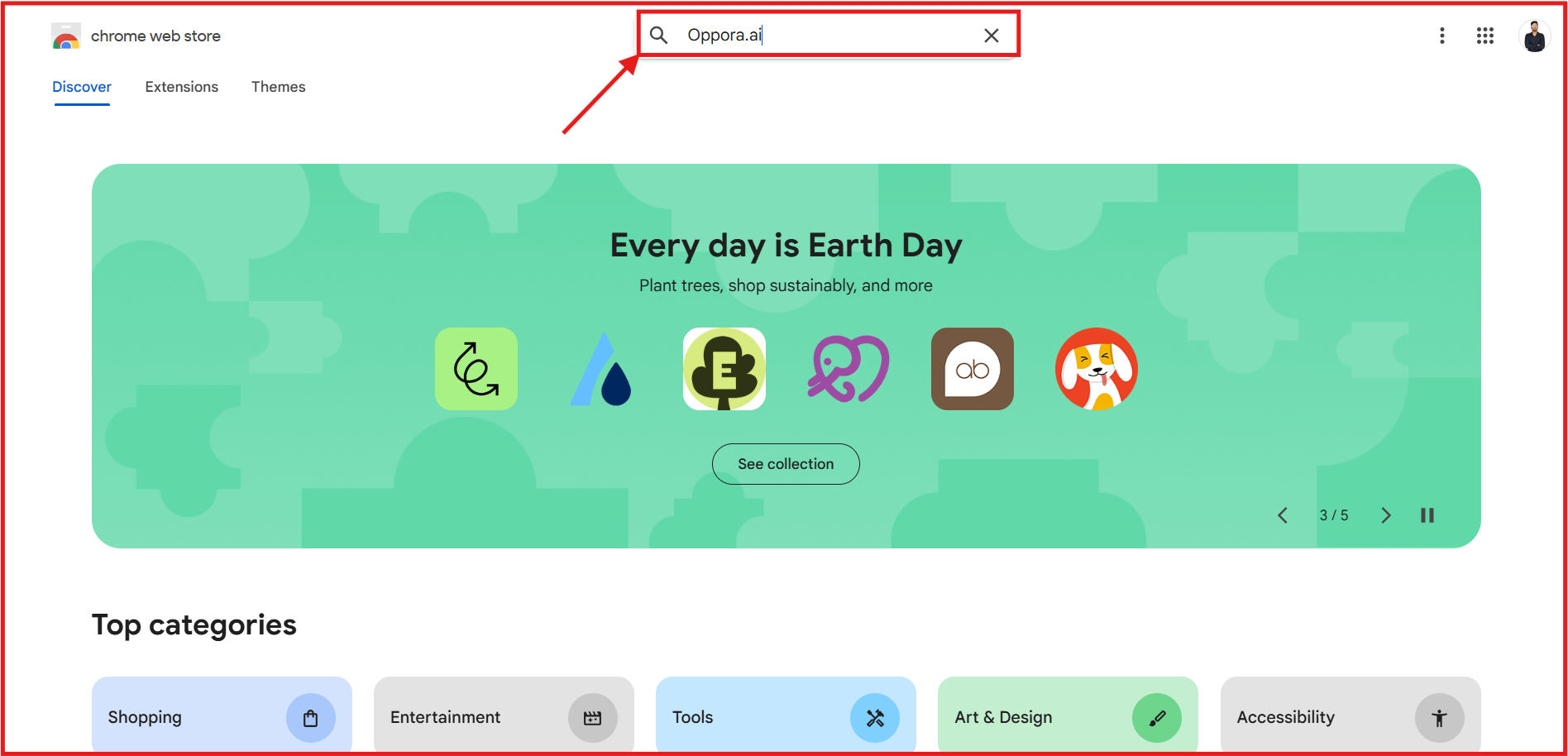
Step 1: Open Chrome Web Store
Go to the Chrome Web Store and search for:
Oppora.ai
Step 2: Install the Extension
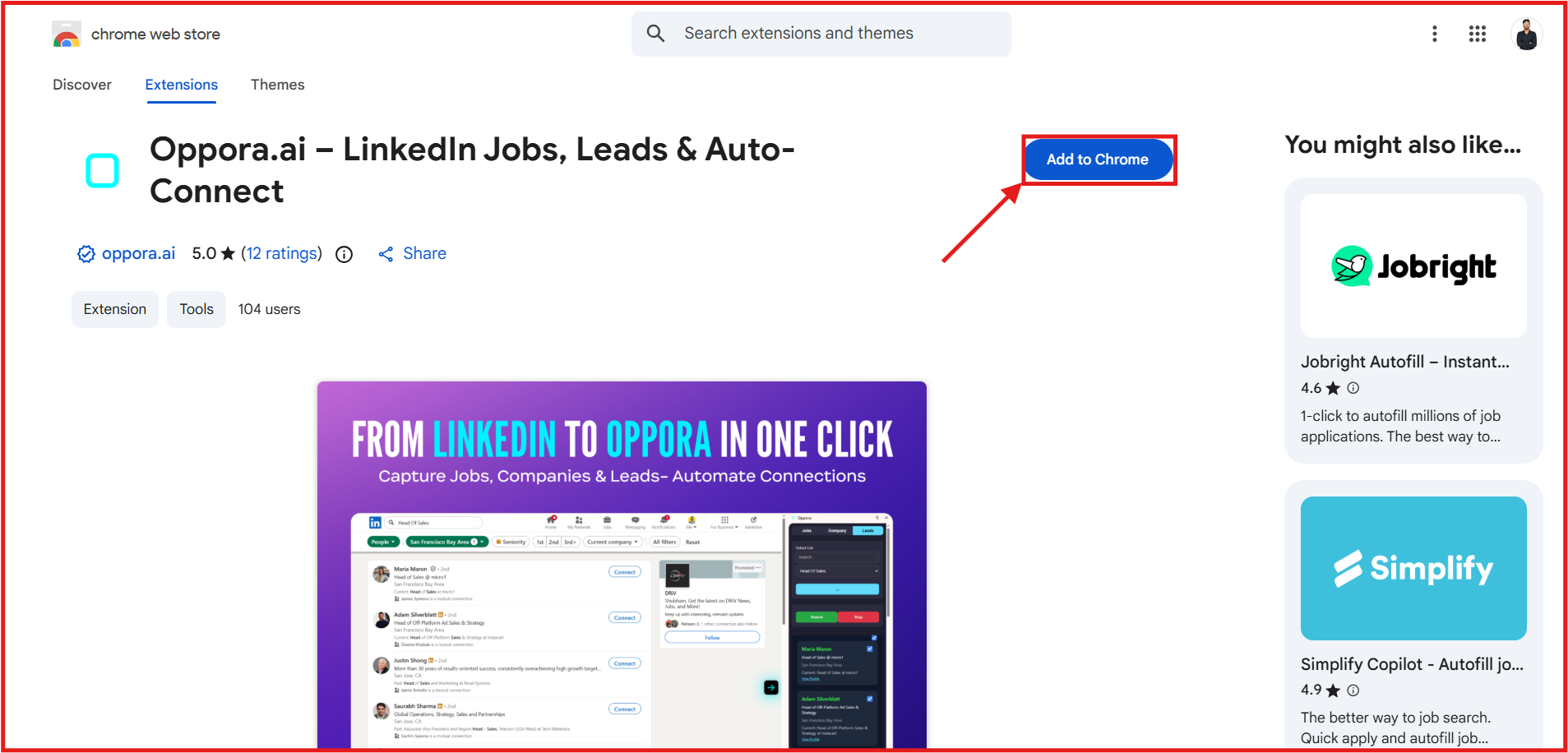
Open the extension page and click:
Add to Chrome
Once installed, the Oppora.ai extension icon will appear inside your Chrome browser.
Access the Oppora.ai Extension on LinkedIn
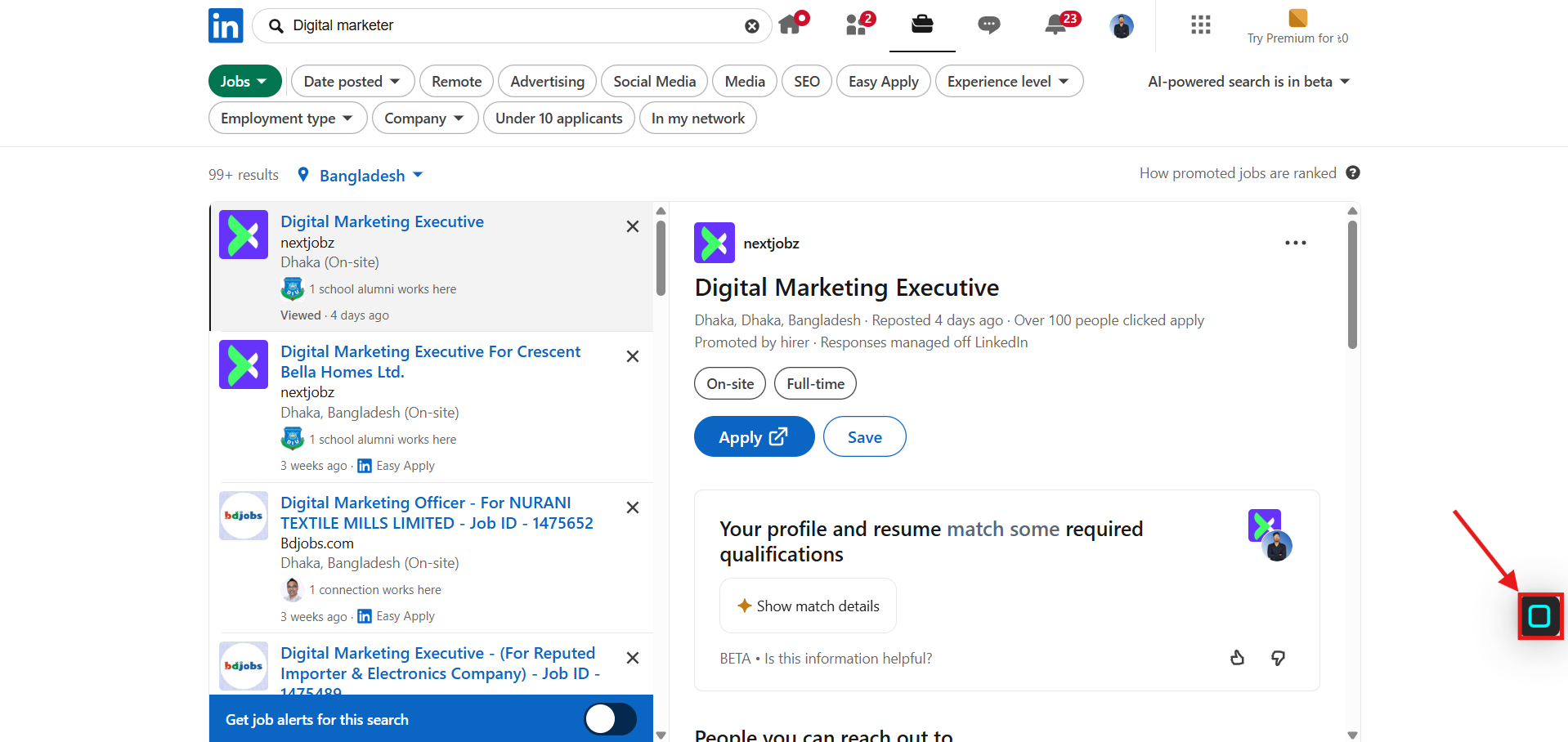
After installation, open LinkedIn.
On the right side of your browser, you will see the Oppora.ai extension icon.
Click the icon to open the extension panel.
Login or Create Your Oppora.ai Account
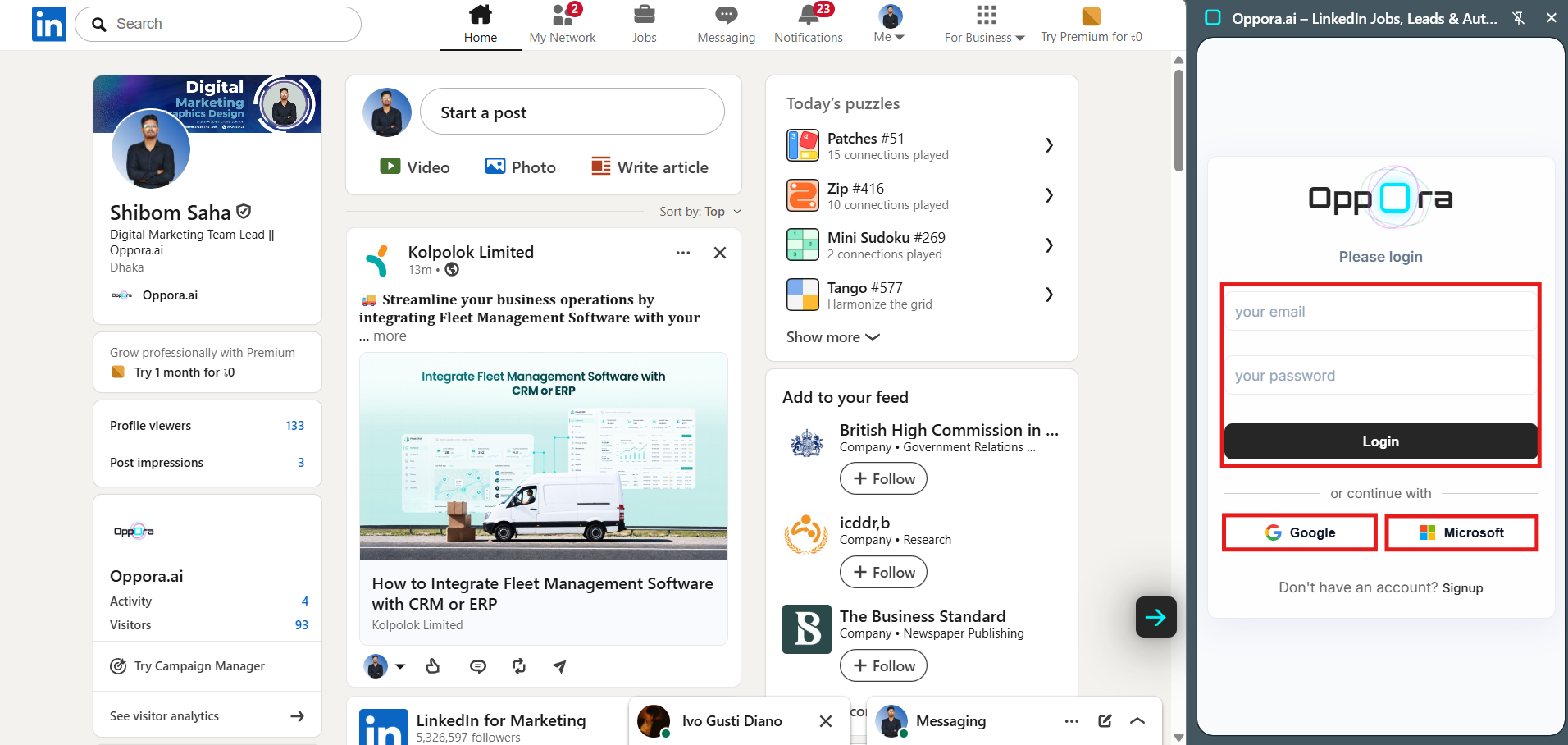
When the extension opens for the first time, you will see the login interface.
You can:
- Login using your Oppora.ai email and password
- Sign up instantly using:
- Microsoft
You can create an account with a single click.
Collect Companies from LinkedIn
One of the most powerful use cases of the Oppora.ai extension is extracting companies directly from LinkedIn search results.
This is useful for:
- Agency prospecting
- B2B sales
- Staffing outreach
- Market research
- Lead generation
- Building target account lists
Step 1: Search Your Target Keyword
Use the LinkedIn search bar to search for your target niche or industry.
Examples:
- Digital marketing
- SaaS
- Healthcare
- Staffing
- IT services
- Recruitment agencies
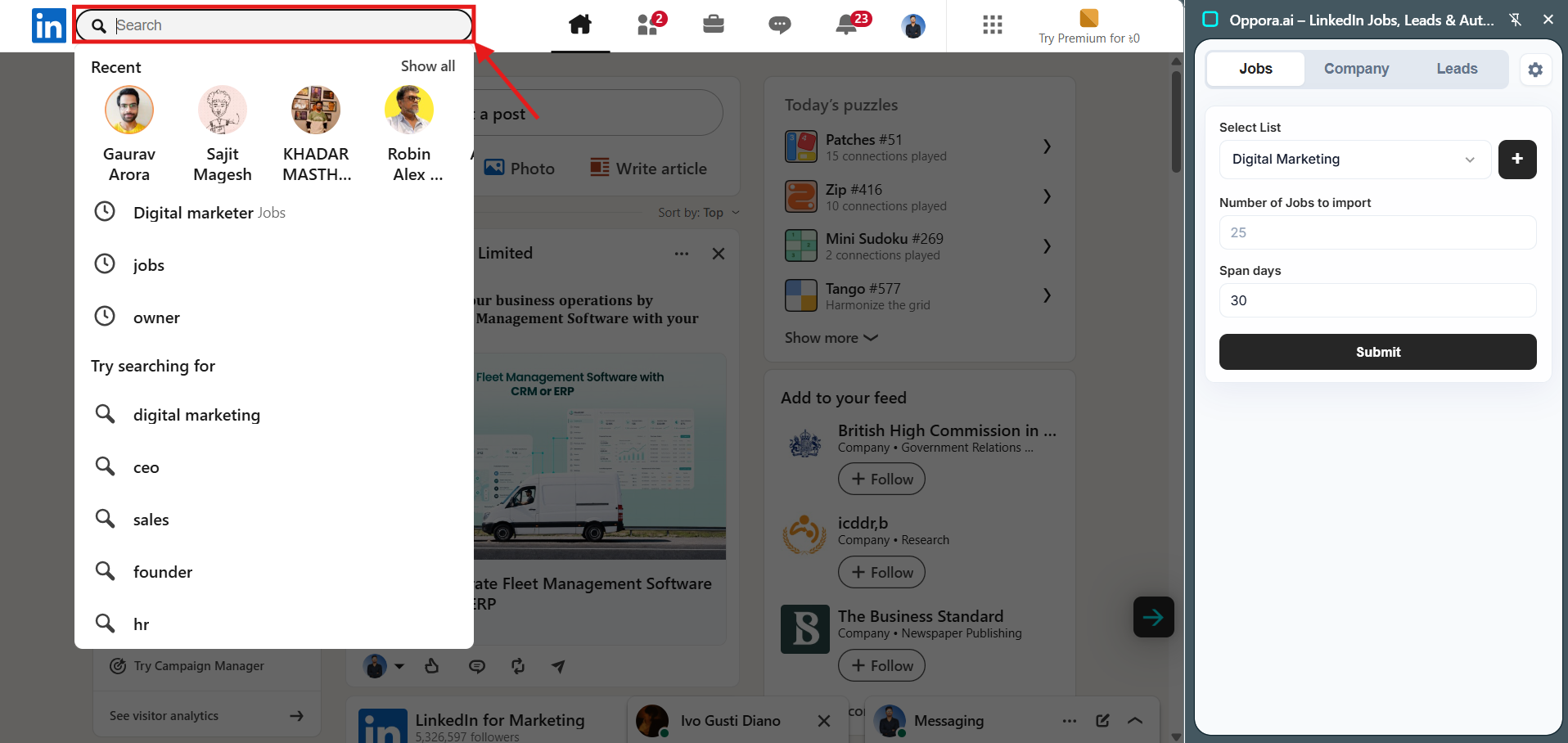
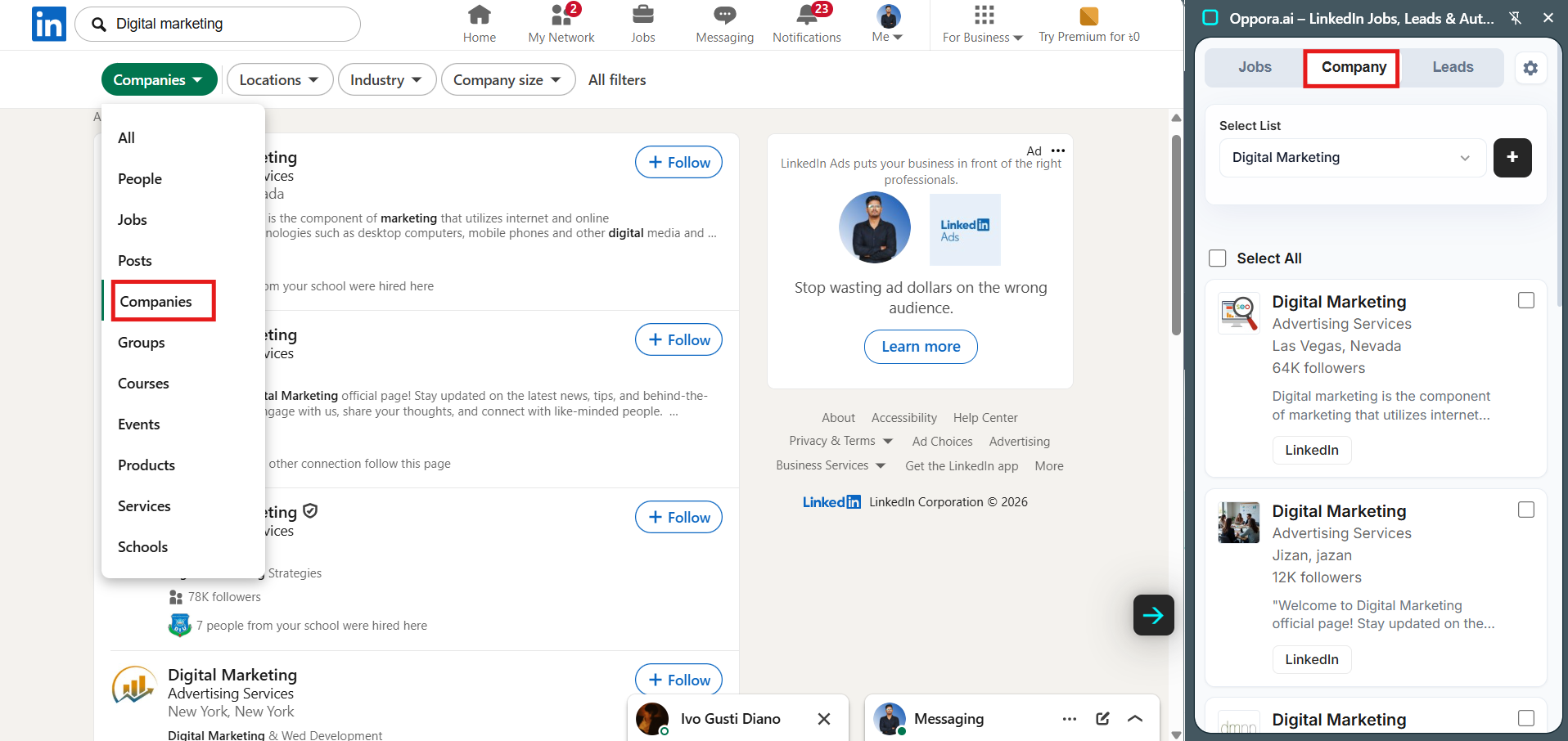
Step 2: LinkedIn Search to Companies
From the LinkedIn category dropdown, select:
Companies
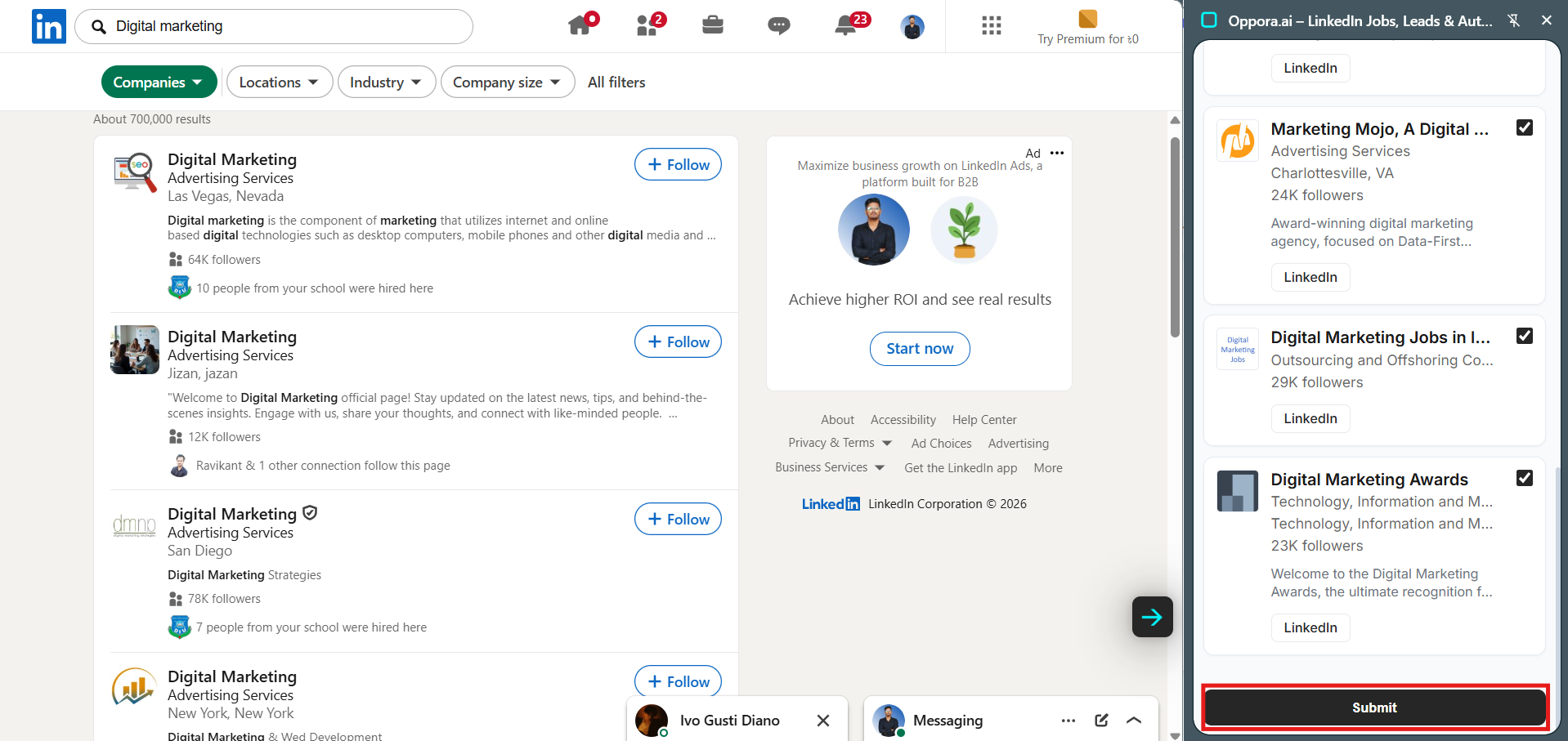
The company results instantly appear inside the extension panel.
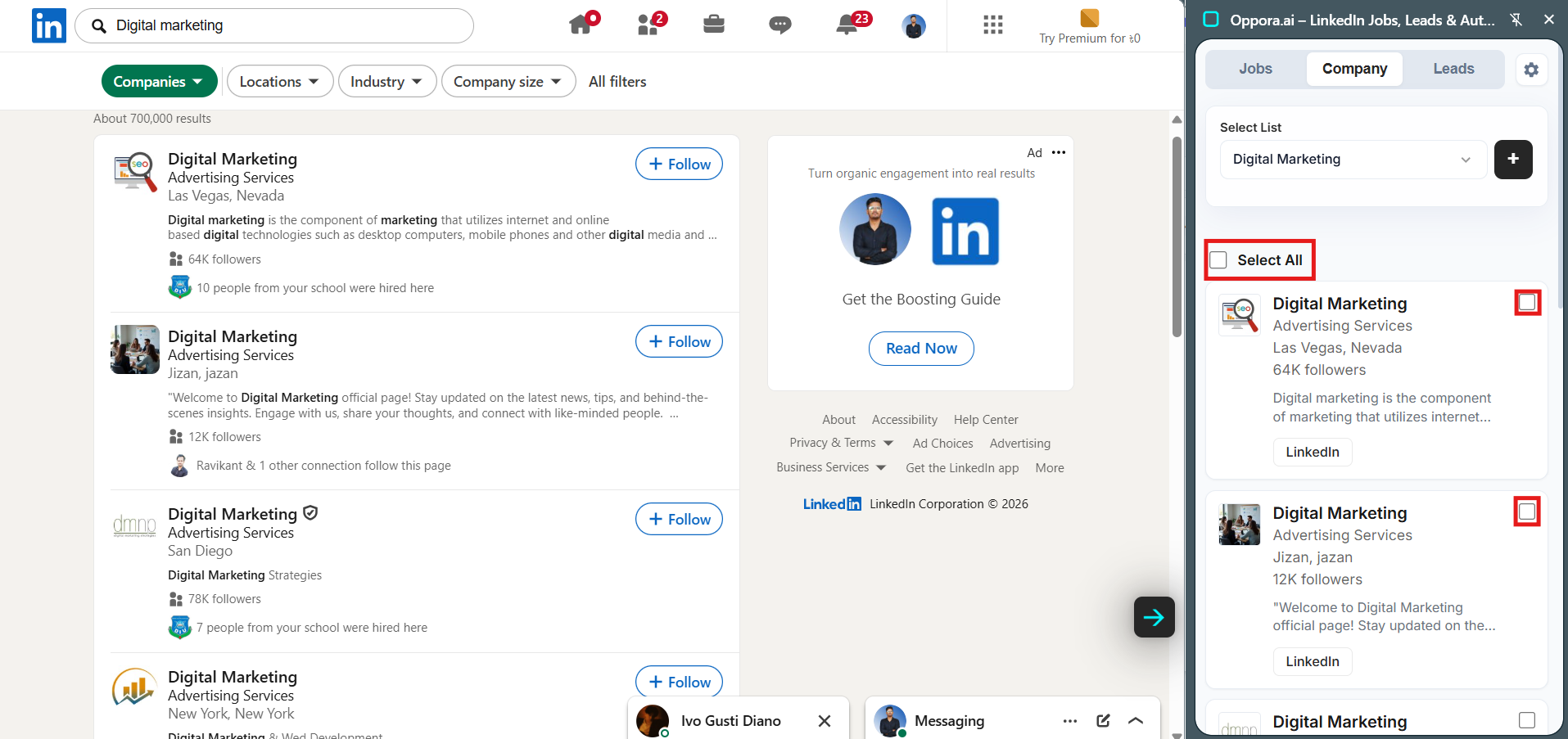
Step 3: Select Companies
Inside the extension panel, you can:
- Use Select All
- Or manually select companies one by one
This gives you full control over the companies you want to save.
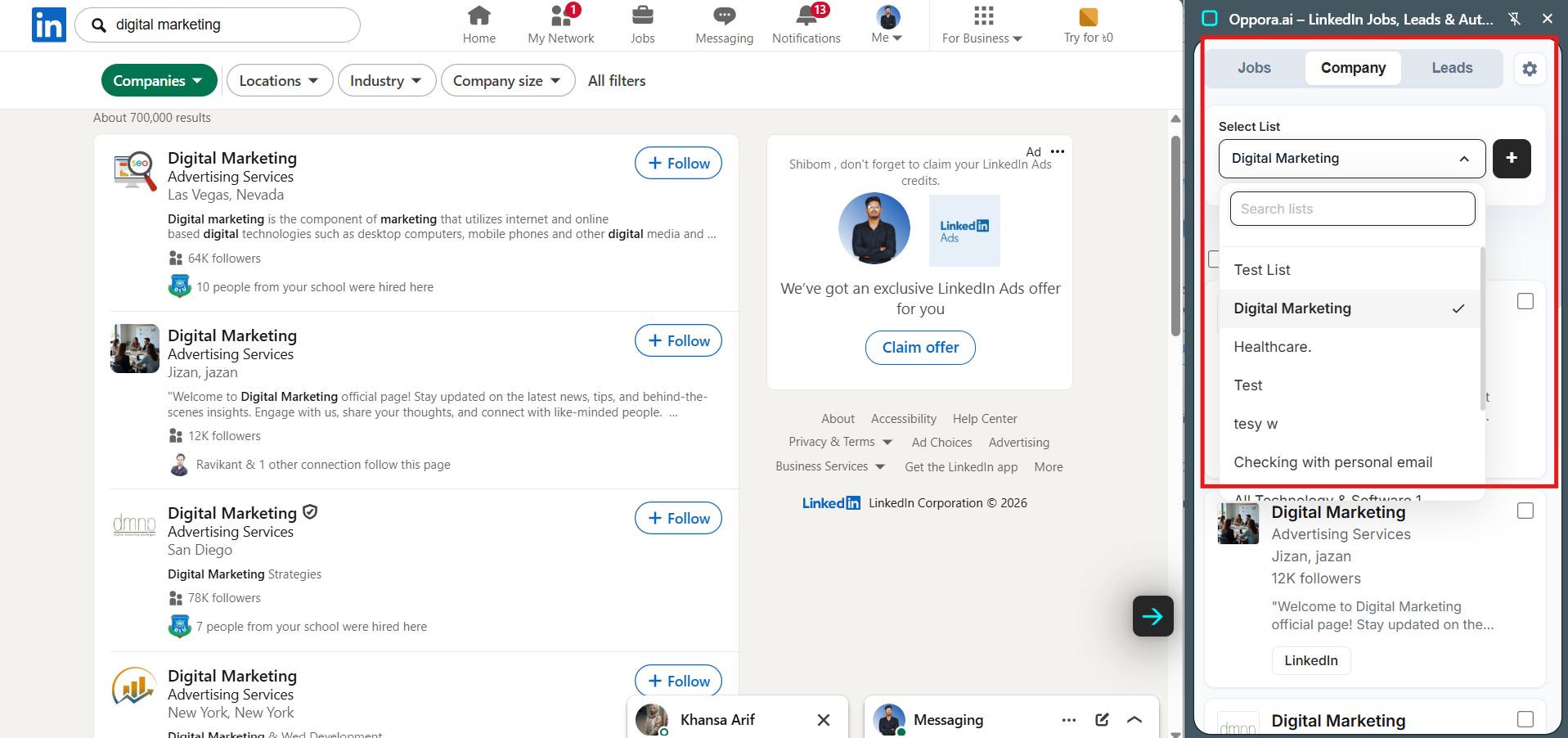
Step 4: Add Companies to a List
Before importing, choose:
Select List
Pick an existing list or create a new one.
Examples:
- SaaS Companies
- Healthcare Companies
- Staffing Agencies
- Marketing Agencies
Step 5: Submit the Companies
After selecting the companies:
- Scroll down inside the extension
- Click Submit
Oppora.ai will now save all selected companies into your list.
What You Can Do After Importing Companies
After importing companies into Oppora.ai, you can:
- Build target account lists
- Run outbound campaigns
- Find decision-makers inside those companies
- Organize accounts by niche or industry
- Use the data inside your sales workflows
- Prepare outreach sequences faster
This turns LinkedIn company browsing into a structured prospecting workflow.
Collect Direct Leads from LinkedIn
The second major use case is collecting direct LinkedIn leads and decision-makers.
Instead of manually saving profiles, Oppora.ai lets you collect leads directly into organized lists.
This is especially useful for:
- SDR teams
- Founders
- Recruiters
- Agencies
- Freelancers
- B2B outreach teams
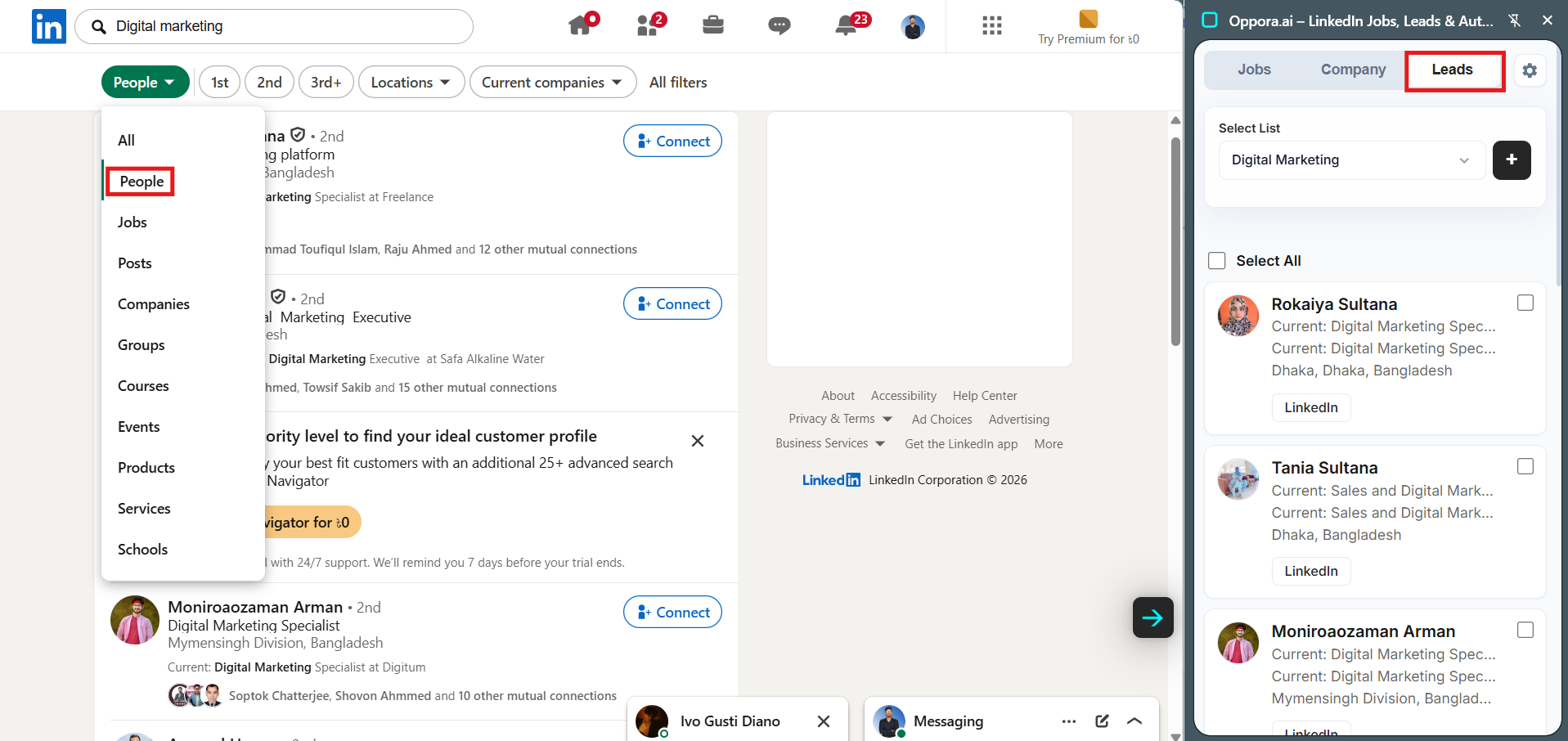
Step 1: Switch LinkedIn Search to People
From the LinkedIn category dropdown, select:
People
Once selected:
- The Oppora.ai extension automatically switches from:
- Company → Leads
The LinkedIn profiles now appear inside the Leads section.
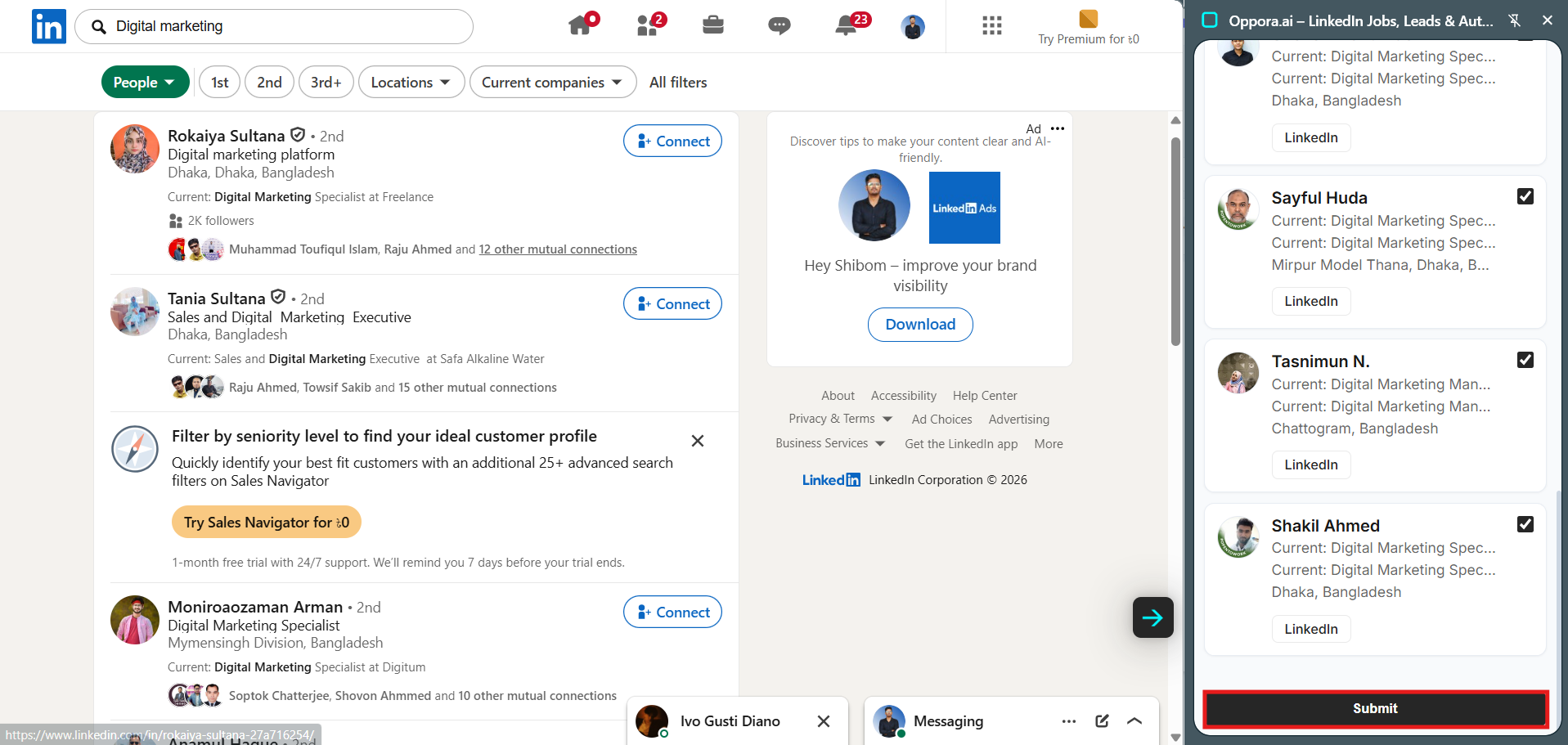
Step 2: Select Leads
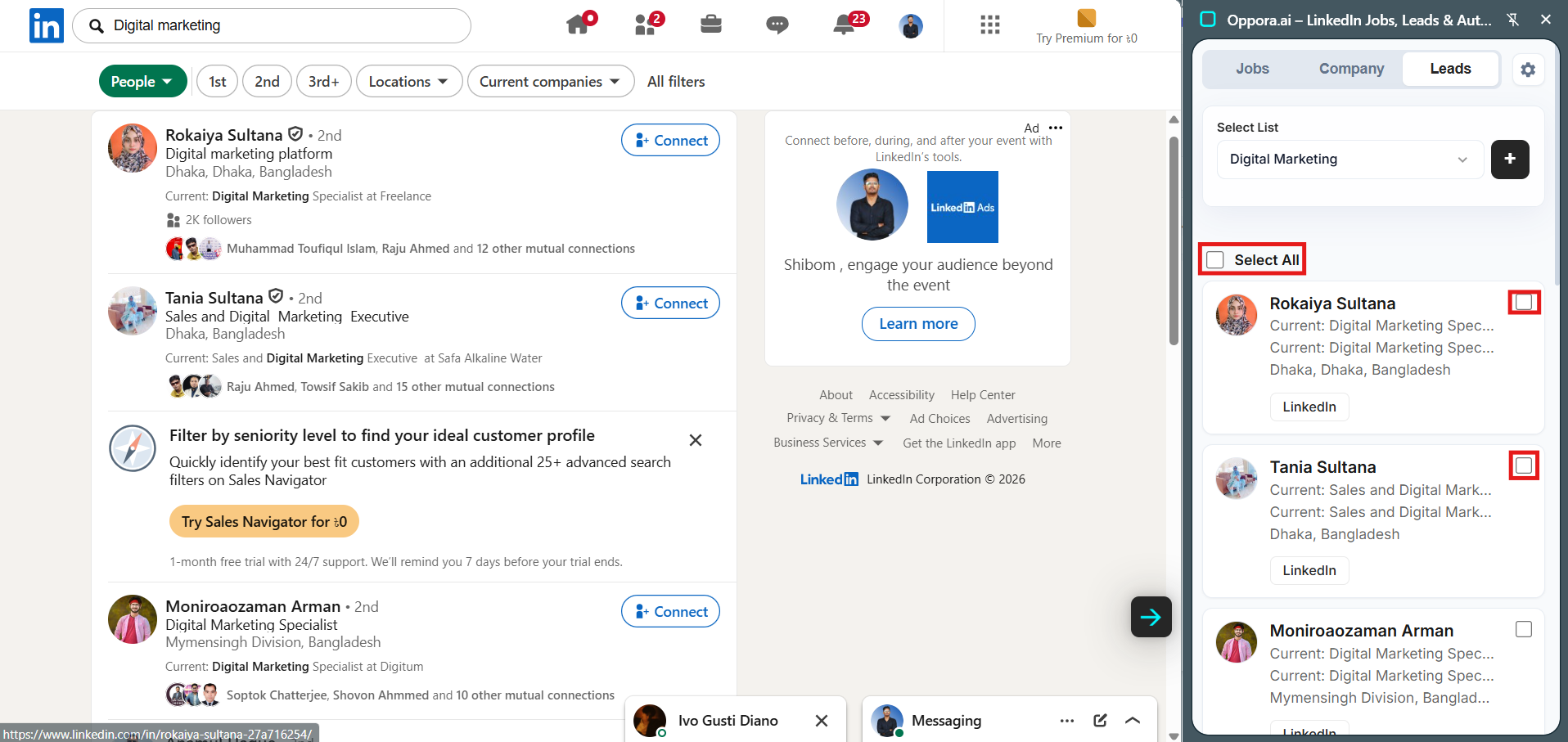
You can:
- Click Select All
- Or manually select leads one by one
Each selected profile can be saved directly into your Oppora.ai list.
Step 3: Save Leads into a List
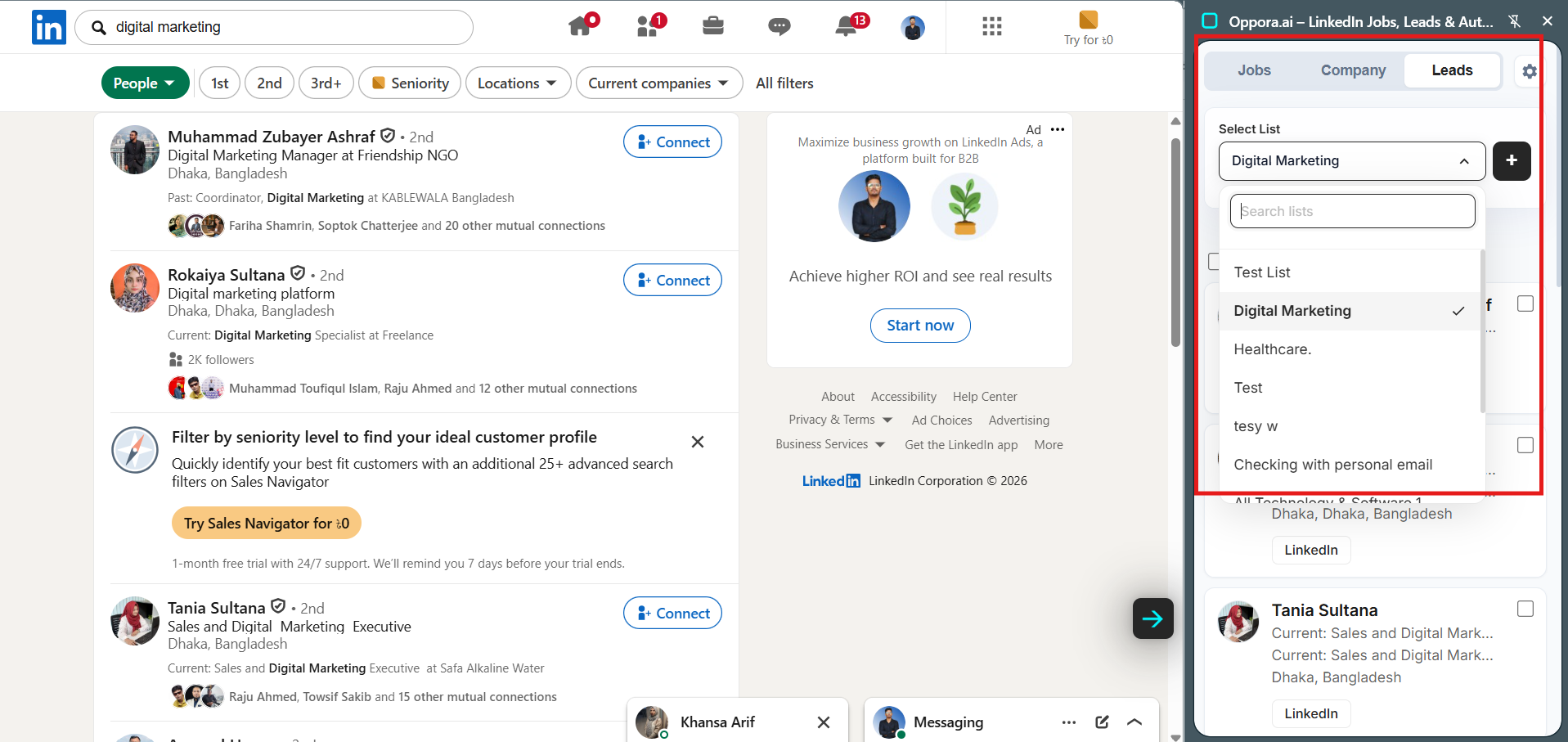
Choose the list where you want to store the leads.
Examples:
- Founders
- Recruiters
- SDR Leads
- Marketing Leads
- Healthcare Decision Makers
Step 4: Submit the Leads
After selecting the leads:
- Scroll down
- Click Submit
Oppora.ai will now import all selected LinkedIn leads into your chosen list.
What You Can Do After Importing Leads
Once your leads are imported into Oppora.ai, you can use them for:
AI Outreach Campaigns
Launch automated outreach workflows using Oppora.ai AI agents.
Cold Email Campaigns
Organize leads for personalized outbound campaigns.
Lead Enrichment
Expand lead data and organize your pipeline.
CRM Workflows
Push leads into your outreach and CRM systems.
Recruitment Outreach
Build talent pipelines directly from LinkedIn.
Prospect Organization
Create segmented lists for different industries, roles, or ICPs.
Instead of collecting random profiles, you now have structured prospecting lists ready for action.
Import LinkedIn Jobs with Oppora.ai
Oppora.ai also allows you to import job listings directly from LinkedIn.
This is useful for:
- Recruiters
- Staffing agencies
- Job research
- Hiring trend analysis
- Outreach targeting
Step 1: Search Your Target Keyword
Use the LinkedIn search bar and search for your target keyword.
Examples:
- Digital marketer
- SDR
- HR manager
- Sales executive
- Recruiter
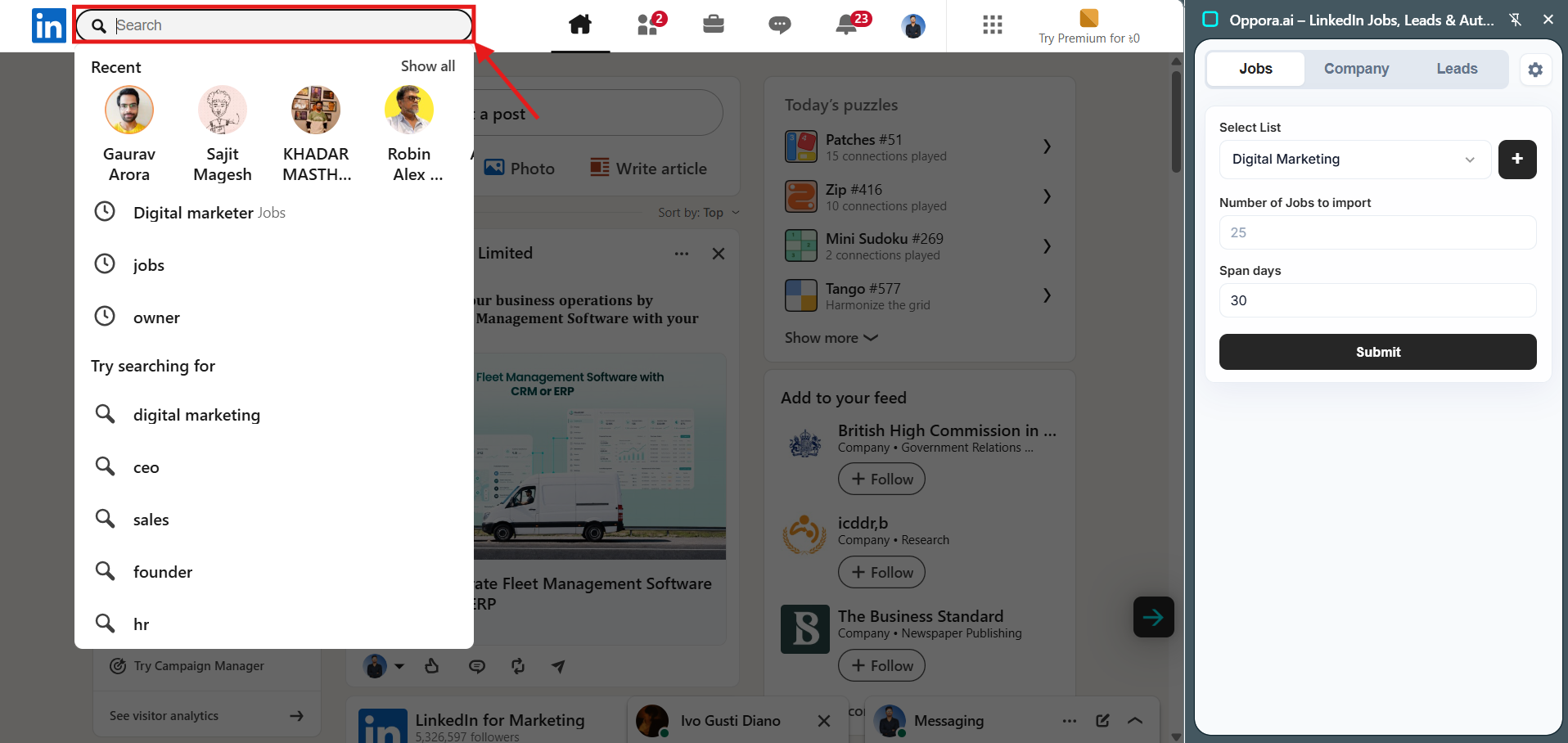
Step 2: Select “Jobs” from LinkedIn Search
From the LinkedIn category dropdown on the top left, select:
Jobs
Once selected, the Oppora.ai extension automatically stays on the Jobs tab.
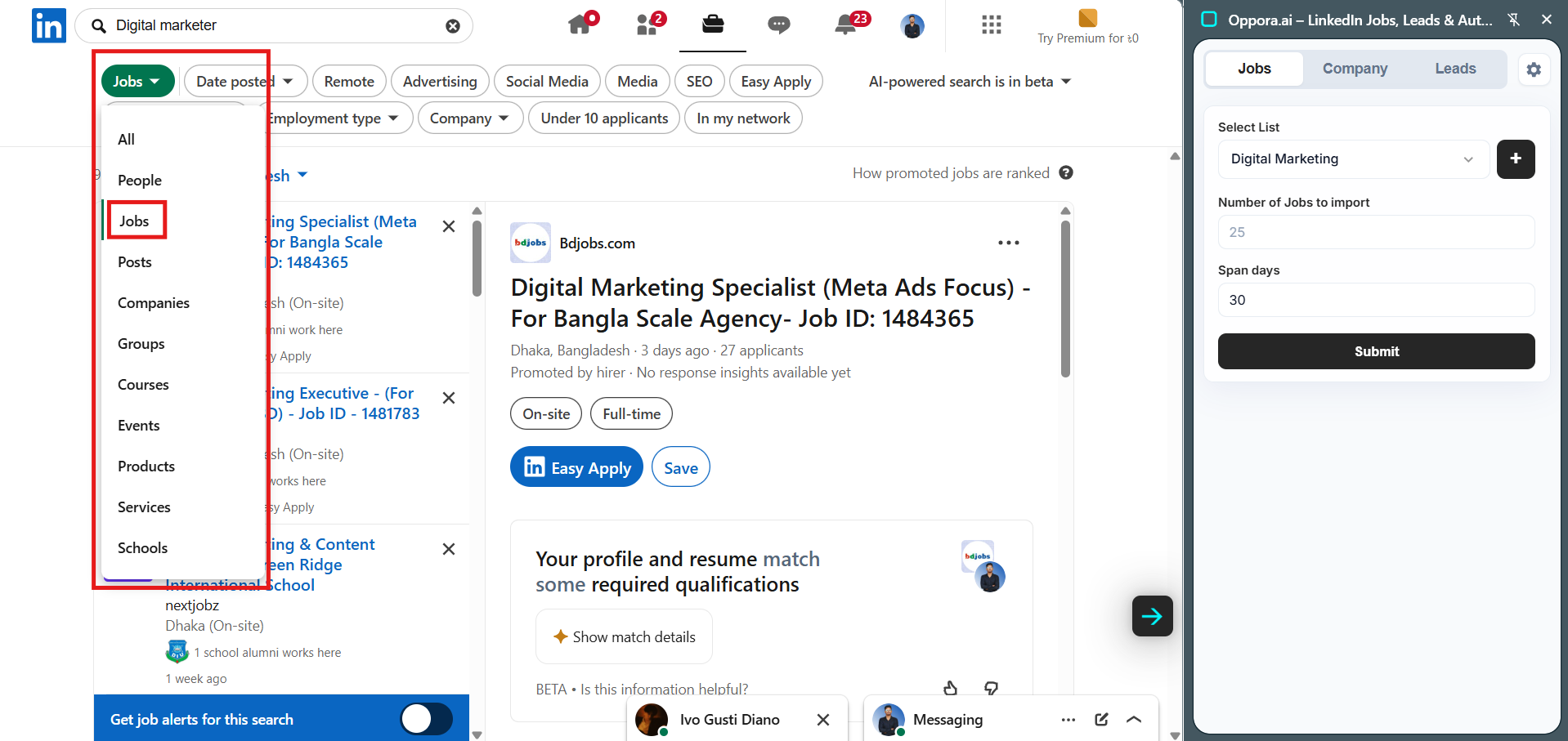
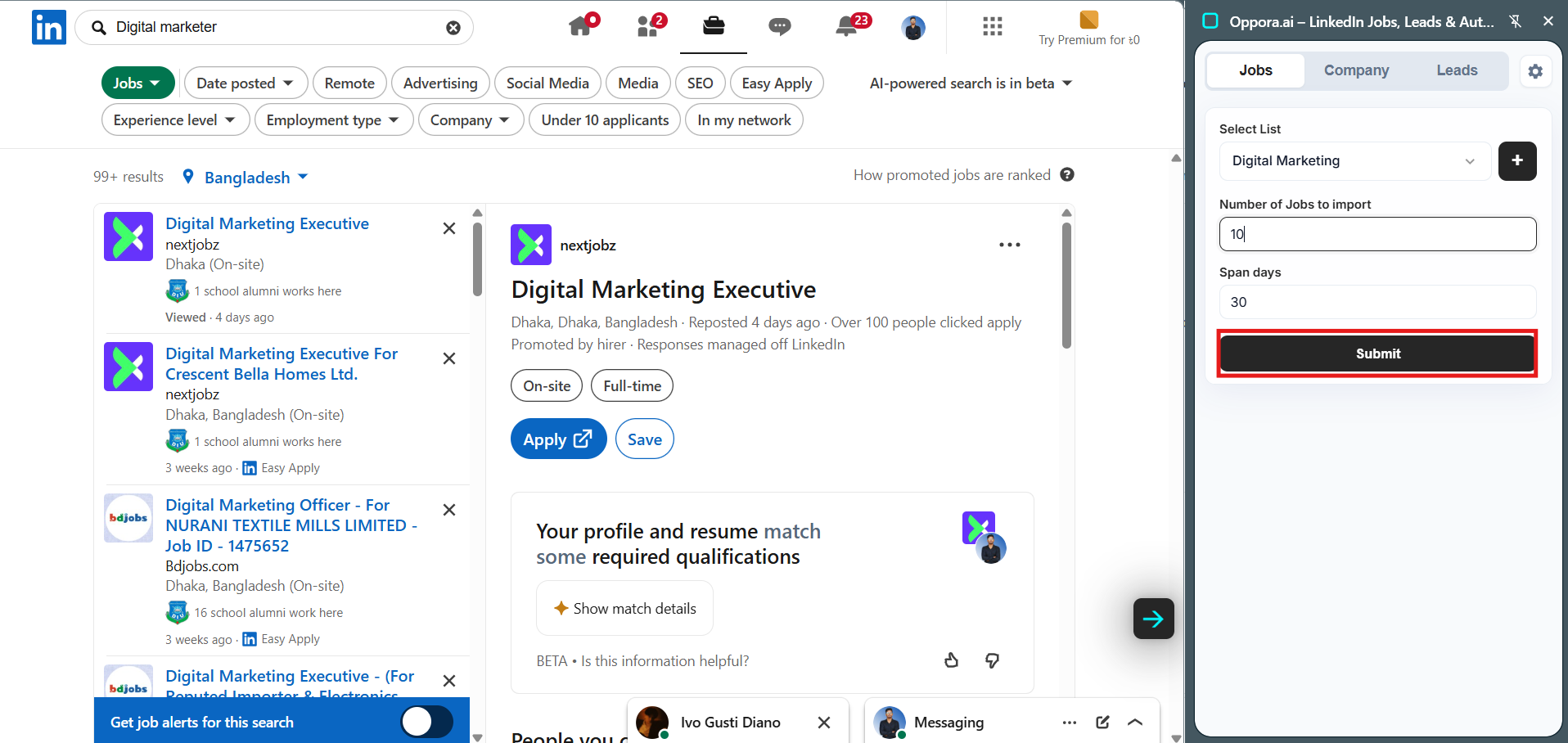
Step 3: Configure Job Import Settings
Inside the extension panel, configure:
Select List
Choose an existing list or create a new one.
Number of Jobs to Import
Enter the number of jobs you want to collect.
Span Days
Choose how recent the jobs should be.
Examples:
- Last 7 days
- Last 30 days
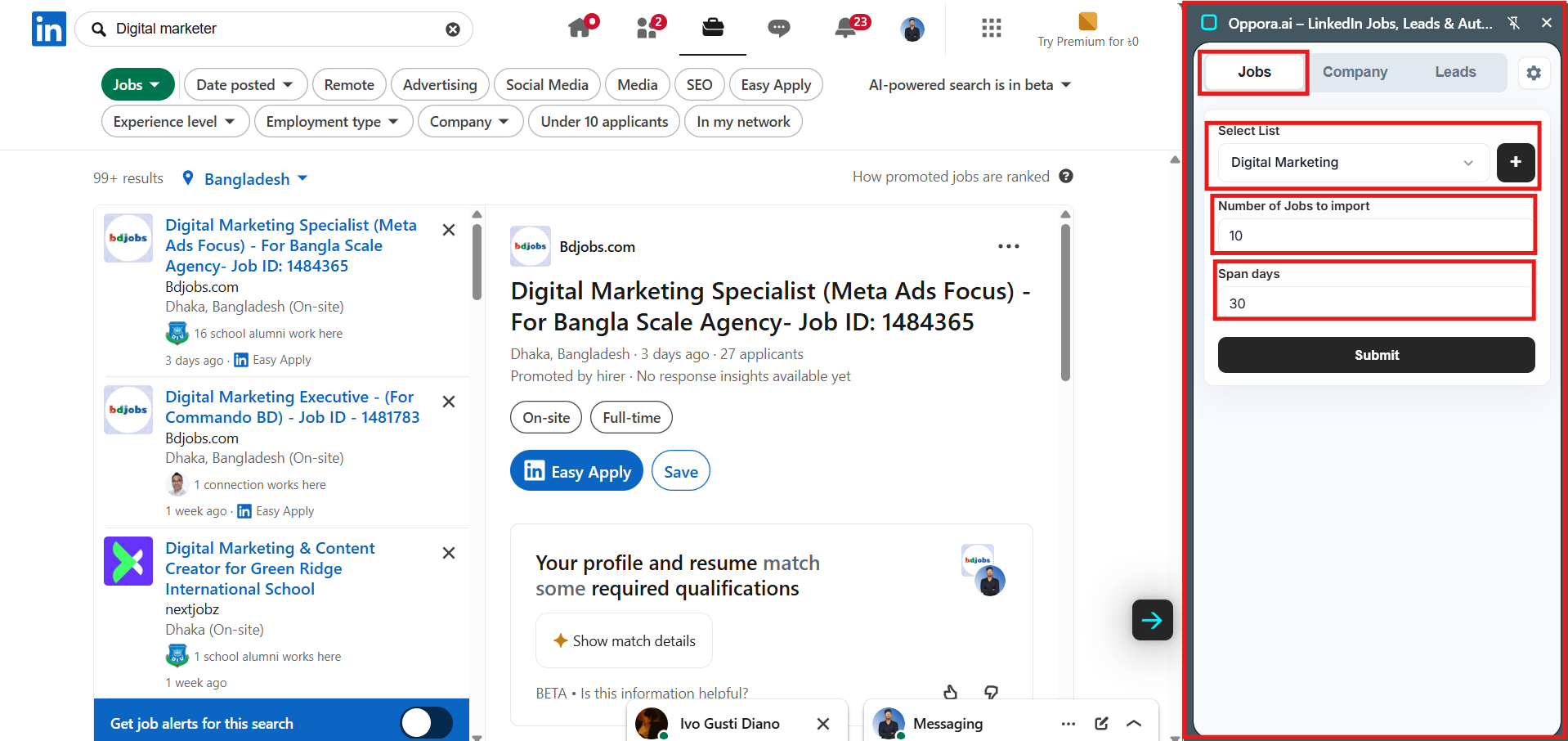
Step 4: Start Importing Jobs
After configuring everything, click:
Submit
Oppora.ai immediately starts importing the jobs.
You can monitor the progress directly inside the extension.
Best Practices
Use Specific Search Keywords
The more targeted your search, the better your results.
Instead of searching:
- Marketing
Try:
- SaaS Marketing Manager
- Healthcare Recruiter
- B2B SDR
- IT Staffing Manager
Create Separate Lists
Organize imports into dedicated lists like:
- SaaS Leads
- Recruiters
- Agencies
- Founders
- Marketing Companies
This makes future outreach and automation easier.
Import in Smaller Batches First
Start with smaller imports to test lead quality before scaling.
Example:
- First import 10–25 leads
- Then gradually scale up
Troubleshooting
Extension Not Opening
- Refresh LinkedIn
- Make sure the extension is installed correctly
- Pin the extension from Chrome extensions menu
No Results Showing
Make sure:
- You selected the correct LinkedIn category
- LinkedIn search results are loaded properly
- The Oppora.ai tab matches the LinkedIn category
Import Not Starting
Try:
- Refreshing LinkedIn
- Reopening the extension
- Logging out and logging back in
Final Thoughts
The Oppora.ai LinkedIn Extension helps you collect companies, leads, and jobs directly from LinkedIn and organize them into actionable prospecting lists.
Instead of manually managing LinkedIn research, you can:
- Build lead databases faster
- Create targeted company lists
- Organize decision-makers
- Prepare outreach campaigns
- Streamline recruitment workflows
All directly inside your Oppora.ai system.